
🔥 FLEXIBLE & SECURE PAYMENTS — USDT • USDC • BTC • ETH • SOL • TRON (TRC20) • BINANCE PAY • KAST & MORE
How to Fix Streaming Buffering: A Practical Troubleshooting Guide
Troubleshoot streaming buffering with practical Wi-Fi, Ethernet, device and app tests. Learn to isolate problems before changing providers.
 plustv
•
16 min read
Streaming should feel effortless, yet a frozen picture can send viewers down a rabbit hole of router settings, new devices, and conflicting advice. This guide explains how to fix streaming buffering through simple tests that isolate the real cause. It applies to legitimate live-TV and on-demand apps on smart televisions, streaming sticks, and connected boxes. Rather than promising a miracle setting, it shows what to measure, what to change, and when to contact support.
For background on streaming technology, see What Is IPTV?. For general device navigation, the site’s installation tutorial may also be useful; follow the device manufacturer’s instructions when they differ.
Table of Contents
Quick answer: how to fix streaming buffering
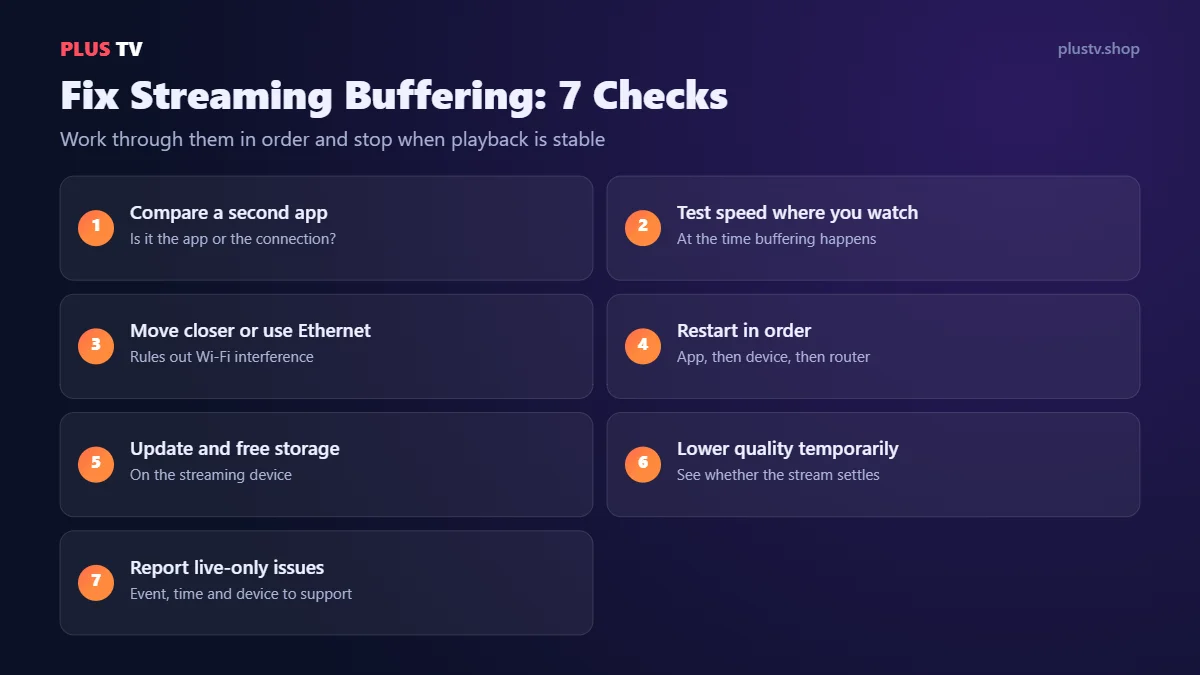
If a stream keeps pausing, work through these checks in order. Each one rules out a different cause, so stop as soon as playback becomes stable.
- Play an ordinary on-demand video in a second app to see whether the problem follows the app or the connection.
- Run a speed test as close to the TV as possible, at the time buffering usually happens.
- Move the device closer to the router, or try a wired Ethernet connection.
- Restart the app, then the device, then the router — in that order.
- Update the app and free up storage on the streaming device.
- Lower the playback quality temporarily to see whether the stream settles.
- If only live events buffer, report the event, time and device to your provider.
What buffering actually means
A buffering symbol is not a diagnosis. It simply means the player cannot present the next part of a video at the moment it is needed. Sometimes the connection has stopped delivering data; sometimes data is arriving unevenly; sometimes the device is struggling to decode or display it. A viewer may experience all three as the same spinning circle. That is why replacing a streaming service before testing the local setup can be an expensive mistake.
Start by observing the exact symptom. Does the video pause while the audio continues? Does the picture freeze and then jump forward? Does the app close altogether? Does the problem occur only during live events, or also with an ordinary on-demand video from a licensed service? These differences help distinguish playback, application, and network problems.
Write down the device model, application name, connection type, approximate time, and whether other devices were using the internet. A short record is much more useful than the statement “it buffers all the time.” It also gives a support agent enough information to avoid repeating basic questions.
Start with a fair comparison test
Before changing settings, reproduce the issue and compare it with a second legitimate streaming application. Choose an ordinary video rather than a popular live event, because live delivery adds variables such as origin capacity, latency, and sudden audience spikes. If both services struggle, investigate your home connection or device first. If only one application struggles, focus on that application, its configuration, or its delivery network.
Next, use the same application on another supported device connected to the same home network. A working phone beside a struggling television suggests a device-specific problem, although phones and televisions can connect to different Wi-Fi bands. A failing phone and television together suggest a broader issue, but do not prove that the internet provider is responsible.
Change only one variable at a time. Switching the router, app, VPN, player settings, and streaming resolution simultaneously makes it impossible to know which change helped. A simple sequence of controlled comparisons produces evidence you can act on, and lets you reverse unsuccessful changes safely.
Measure the connection where you watch
You cannot fix streaming buffering reliably until you know the real speed at the screen, not just at the router. The speed advertised on an internet plan is not necessarily the speed reaching the television. Test from the viewing device if it offers a built-in network diagnostic. Otherwise, test on a phone or laptop close to the television and clearly note that this is only an approximation. Repeat the test at different times of day. One excellent measurement at noon does not rule out congestion during a busy evening.
Download speed matters, but so do latency, packet loss, and consistency. A connection that briefly falls to almost nothing can interrupt playback even when its average speed looks impressive. If available, compare several results rather than choosing the best one. Also check whether someone is uploading large files, making video calls, or downloading game updates during the test.
Netflix currently lists 3 Mbps for 720p, 5 Mbps for 1080p, and 15 Mbps for 4K as its recommended stable connection speeds. Those are Netflix-specific guidance, not universal guarantees for every video codec or live service. Leave additional headroom for other household devices and unpredictable network variation. Source: Netflix-recommended internet speeds. For a broader view of how much bandwidth different activities and busy households need, the FCC’s Broadband Speed Guide is a useful neutral reference.
Understand Wi-Fi interference before buying equipment
Wi-Fi interference is one of the most common reasons people struggle to fix streaming buffering at home. Wireless networking is convenient, but a strong-looking Wi-Fi icon does not establish that the signal is reliable. Walls, neighboring routers, crowded channels, and the position of a television behind a large screen can affect performance. If a streaming stick sits directly behind the television, moving it slightly with an appropriate HDMI extender may change reception. Do not assume that an expensive new router is necessary.
Where supported, compare the 2.4 GHz and 5 GHz bands. The former can reach farther in some homes, while the latter may offer better performance over shorter distances with less interference. Actual results depend on building materials, congestion, and the equipment in use. A mesh system may help with coverage, but poor placement or wireless backhaul congestion can still cause trouble.
Try one test with the device nearer to the router, if practical. If the problem disappears, investigate placement and coverage. If nothing changes, look elsewhere. Avoid making repeated changes to advanced router settings unless you know how to restore them; a basic connection comparison is usually a safer first step.
When Ethernet is worth trying
If you want to fix streaming buffering quickly and prove where the problem lives, a cable is the fastest test. A wired connection is an excellent diagnostic tool because it removes many wireless variables. If the television or streaming box has an Ethernet port, connect it directly to the router using a known-good cable and replay the same legitimate video. Some compact streaming sticks require a compatible Ethernet adapter; check the manufacturer’s specifications before purchasing one.
Ethernet is not magic. It cannot repair an overloaded video origin, an incompatible codec, or a faulty application. It also cannot increase an internet plan’s speed beyond what the provider delivers. Its main advantage is a more predictable local link. If wired playback is stable while Wi-Fi playback repeatedly fails, you have strong evidence that wireless coverage or interference deserves attention.
Inspect the cable and router port if wired performance is unexpectedly poor. Test another cable or port when available. Avoid assuming every adapter supports gigabit speeds; some devices and adapters have lower interface limits that are nevertheless sufficient for many streaming applications. The objective is reliable delivery, not winning a speed-test competition.
Restart safely and in the right order
A careful restart can fix streaming buffering caused by temporary faults, as long as you do it in a sensible order. A restart is a reasonable early step because temporary software or networking faults sometimes clear after services reconnect. First close and reopen the affected app. If that changes nothing, restart the streaming device using its normal menu. Then, if other devices are affected, consider restarting the router according to its manufacturer’s instructions.
Allow equipment time to reconnect. Unplugging and reconnecting a router repeatedly within seconds can complicate diagnosis, particularly when the connection takes time to establish. Do not perform a factory reset merely because a video paused once. Factory resets can erase accounts, saved settings, and accessibility preferences and should be a last resort after more targeted checks.
After each restart, replay the same content for a comparable period. If the symptom returns at a predictable time, record that detail. An intermittent problem that temporarily disappears after reboot may indicate resource pressure, heat, memory use, or a network condition rather than a permanent fix. Keeping that distinction in mind prevents false confidence.
Check application updates and storage
Outdated apps and nearly full storage can make it harder to fix streaming buffering, even on a fast connection. A video player is software, and software can develop faults. Check for updates through the device’s official app store and system settings. Updates can address compatibility and stability issues, although an update is not a guaranteed cure. If the problem began immediately after an update, note the version and date before contacting the developer.
Look at free storage. A nearly full device may struggle with updates and temporary files. Remove only applications or downloads you recognize and no longer need; do not delete unknown system components. If the platform offers a clear-cache function, it may be worth trying after reading the description. Cache removal is different from clearing app data, which can remove saved configuration and require another sign-in.
On Amazon Fire TV devices, these controls sit under Settings › Applications › Manage Installed Applications. Select the affected app, choose Clear Cache first, and use Clear Data only if the problem continues, because it resets the app and usually signs you out. Our IPTV on Fire TV Stick setup guide covers the device’s settings in more detail. Keep any legitimate subscription details accessible before resetting an app.
Match playback quality to real conditions
Sometimes the simplest way to fix streaming buffering is to choose a quality level your connection can sustain. A higher resolution is not automatically a better viewing experience. Smooth 1080p video often looks better than 4K playback that stops every few minutes. If your legitimate application provides a quality selector, temporarily choose a lower resolution and repeat the test. Improvement suggests that the higher-quality stream demands more consistent delivery or decoding resources than the setup currently provides.
Do not confuse resolution with bitrate. Two videos labeled 1080p can use different amounts of data depending on compression, motion, and encoding choices. Fast-moving sports may be more demanding than a static interview. Some players automatically adjust quality, while others use a fixed stream. The presence of an “auto” option does not guarantee that adaptation will work perfectly under every condition.
If the application offers hardware decoding settings, consult its official documentation before changing them. A mismatch between device capabilities and video format can cause stutter even with plenty of bandwidth. Record the original setting so it can be restored. When testing, keep the same device, connection, and content as constant as possible.
Live television has different failure modes
Live streams are harder to fix because the player has less time to build a buffer, so the usual ways to fix streaming buffering may need adjusting. Live streaming differs from an on-demand film because the player cannot always fetch an arbitrarily large amount of future video. The service must receive, process, and distribute content as events unfold. Sudden audience peaks, problems upstream, and delays between delivery stages can affect playback. A pause during a major event is not sufficient evidence of a home Wi-Fi fault.
Compare several authorized live channels or streams, if your subscription includes them, and contrast the result with on-demand playback. If only one event fails while other content is stable, report the event name, time, and device to the legitimate provider. Avoid publishing private account credentials or access URLs in public forums.
Some players offer buffer-size controls, but larger buffers trade startup time and live latency for greater tolerance of short interruptions. They cannot compensate indefinitely for missing data. Do not copy arbitrary “perfect buffer” numbers from social media; settings vary by player and device. A careful test of the default setting is often a better baseline.
Know when a VPN is relevant—and when it is not
A VPN is rarely the tool that will fix streaming buffering on its own, and it can sometimes make things worse. A VPN changes the route and encryption of traffic between your device and a VPN endpoint. That can sometimes alter routing behavior, but it also introduces another network hop and potential bottleneck. It should not be advertised as a universal buffering fix. If you already use a VPN for a legitimate purpose, compare performance with and without it where doing so is lawful and consistent with the service’s terms.
Choose a nearby reputable endpoint when the VPN provider allows location selection, then test the same content again. A different result is a clue, not proof of intentional throttling. Network routes, server load, and time of day can all change. Do not use a VPN to bypass territorial licensing or access content you are not entitled to view.
If the video fails only while a VPN is enabled, contact the VPN vendor or use a supported connection method. If the video fails regardless of VPN state, continue with device and application checks. The most useful troubleshooting process separates a privacy tool from the underlying video-delivery problem.
Decision tree: how to fix streaming buffering that keeps coming back
If every streaming application fails on every device, start with the router, broadband service, and local congestion. Check whether ordinary websites and video calls also misbehave. If only the television fails, test its network connection, updates, storage, and playback capabilities. If only one app fails across several devices, investigate the app’s status and the provider’s support documentation.
If Wi-Fi fails but Ethernet works, prioritize wireless placement and interference. If both fail at the same time, inspect the upstream connection or application. If playback works at quiet hours but fails in the evening, collect several time-stamped tests before reporting the issue. If only one live channel fails, avoid resetting the entire home network as the first response.
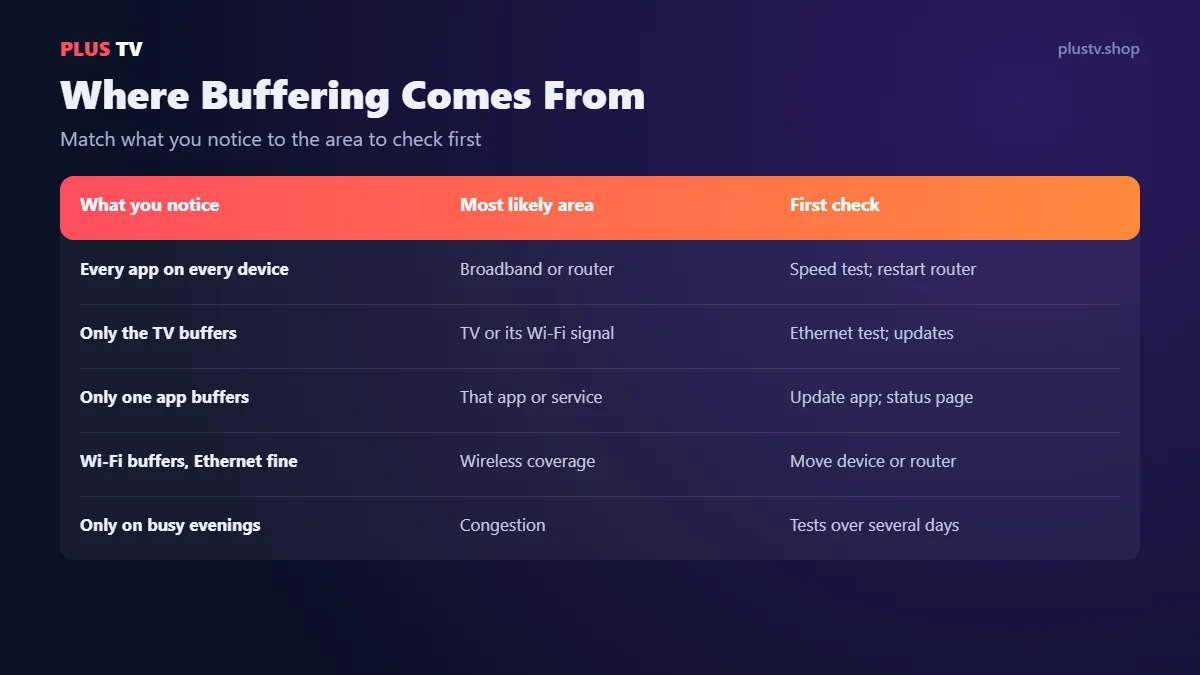
The table below summarises the most common patterns and where to look first.
| What you notice | Most likely area | First check |
|---|---|---|
| Every app buffers on every device | Broadband service or router | Speed test at the time buffering happens; restart the router |
| Only the TV buffers | The TV or its Wi-Fi reception | Ethernet test; system and app updates |
| Only one app buffers | That app or its service | Update the app; check the provider’s status page |
| Wi-Fi buffers, Ethernet does not | Wireless coverage or interference | Reposition the device or router; compare bands |
| Only on busy evenings | Local or upstream congestion | Time-stamped tests over several days |
| Only one live event | Delivery of that event | Report event name, time and device to the provider |
When contacting support, provide a concise report: device model, app version, connection type, approximate download test, affected content, local time, and steps already tried. Include a screenshot of an error message if it contains no sensitive information. Never share passwords, payment details, or private playlist tokens in a support forum.
How to prevent buffering before your next viewing session
Prevention is easier than trying to fix streaming buffering in the middle of a match or film. Good maintenance is less dramatic than emergency troubleshooting. Keep the operating system and trusted applications updated, allow reasonable free storage, and place wireless equipment where it can operate without being blocked by large objects. Avoid downloading large files during an important live broadcast if your connection is already close to its limits.
Before a planned event, test the app using authorized content and verify that you can sign in normally. Keep the remote, power adapter, and internet connection in good condition. If the device regularly overheats, improve ventilation according to the manufacturer’s guidance rather than enclosing it behind other warm electronics.
Finally, remember that not every pause is under your control. A stable home network cannot guarantee the performance of every external streaming platform. Treat recurring problems as a process of elimination, not a reason to buy more hardware immediately. The best outcome is not a complicated configuration; it is a setup you understand, can maintain, and can troubleshoot without risking your accounts or data.
Frequently asked questions
How do I fix streaming buffering on a smart TV?
Close and reopen the app, restart the TV, and check for system and app updates. Then play the same video on another device on the same network. If the TV is the only device affected, try a wired Ethernet connection or move the router closer before replacing any equipment.
Why does my TV buffer when my phone works?
The television may have weaker Wi-Fi reception, older software, different decoding hardware, or a different app version. Compare the same legal service on both devices and check whether they use the same network band.
Will faster internet always stop buffering?
No. A faster plan cannot fix an unstable wireless connection, a broken application, or a problem with the streaming platform. Consistency and device compatibility matter alongside speed.
Is Ethernet better than Wi-Fi for streaming?
A wired connection usually removes local wireless interference and is useful for diagnosis. It does not resolve every issue outside your home network.
Should I clear cache or app data first?
Where supported, clear cache first. Clearing app data may reset settings and sign-in information. Read your device’s instructions before proceeding.
Does a VPN stop buffering?
Not reliably. It changes the network route and may improve or worsen performance. Use one only for legitimate purposes and test rather than assuming it helps.
Why does my stream only buffer in the evening?
Evenings are when most households stream at the same time, so both your home network and your internet provider’s network can be busier. Run speed tests at different times over several days; a consistent evening drop is useful evidence when you contact your internet provider.
Final checklist
Test one variable at a time, record the results, and use only applications and streams you are authorized to access. The goal is dependable playback rather than an unsupported promise of zero interruptions. If you work through the checks above and still cannot fix streaming buffering, your notes on device, time and connection type will make the next conversation with support much shorter.
Related Articles
November 20, 2026
IPTV in Kosovo, Serbia and North Macedonia: Language and Device Compatibility Guide

November 20, 2026
IPTV in the Balkans: A Regional Viewing Guide for Families and Diaspora

November 20, 2026
IPTV in Albania: Devices, Albanian Language and Setup Guide

November 20, 2026