
🔥 FLEXIBLE & SECURE PAYMENTS — USDT • USDC • BTC • ETH • SOL • TRON (TRC20) • BINANCE PAY • KAST & MORE
IPTV on Fire TV Stick: Setup, Compatibility and Troubleshooting
Set up IPTV on a Fire TV Stick step by step: check Fire OS vs Vega OS, choose a player app, enter the right login type and fix buffering, crashes and subtitles.
 plustv
•
13 min read
Setting up IPTV on Fire TV Stick devices should take ten minutes. In practice it often takes an evening, because the first problem is usually not the stream at all. It is the device itself: which Fire TV you own, which apps it can run, and whether your provider uses a login, an activation code or a playlist. Sort those out first and most of the “it won’t work” moments disappear.
This guide walks through the setup in order, from checking your model to fixing buffering, crashes and subtitle problems, without touching risky system settings.
Table of Contents
Step 1: Check which Fire TV you have
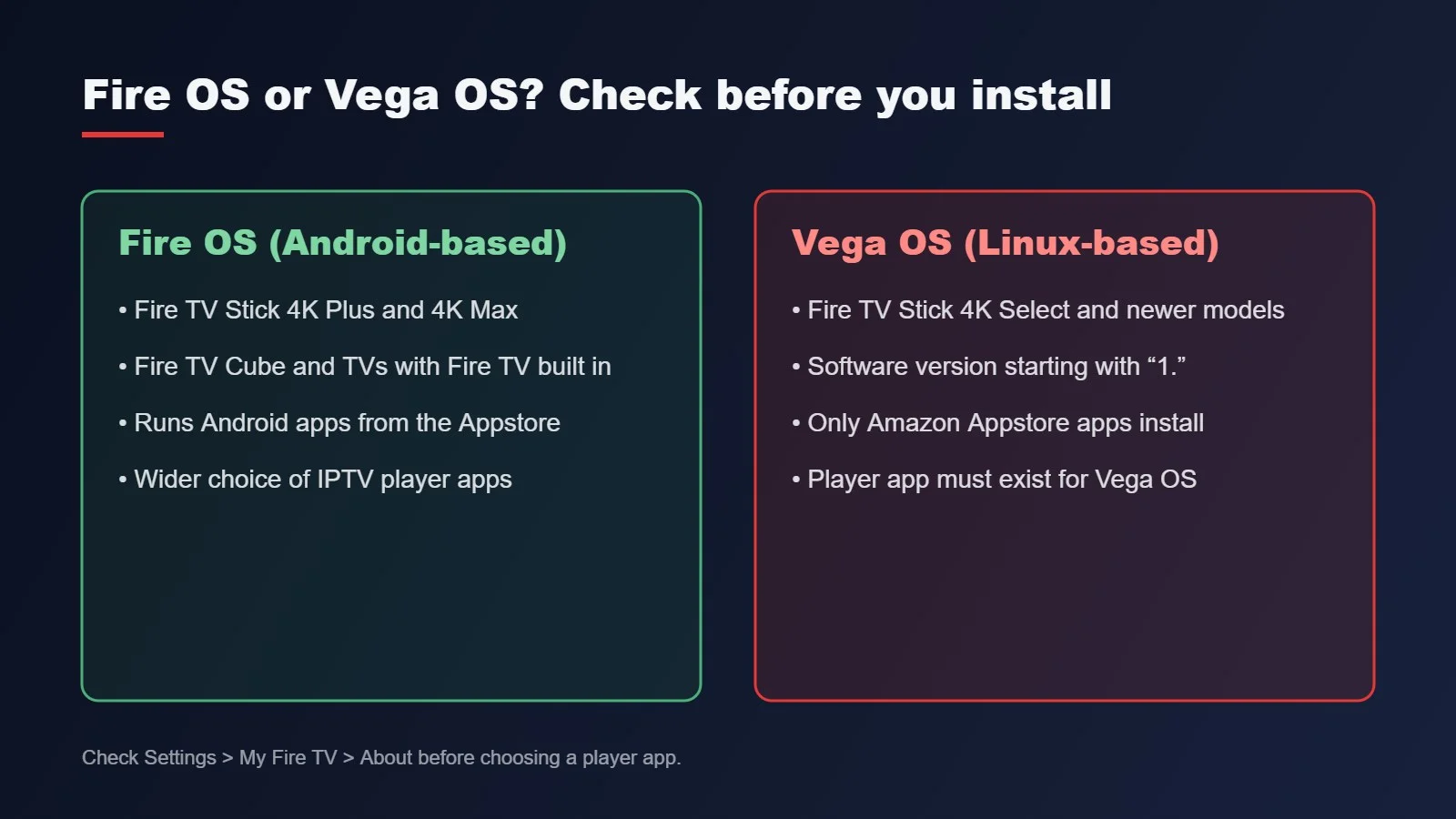
This matters more than it used to. Amazon now sells two families of Fire TV devices. Long-standing models such as the Fire TV Stick 4K Plus, Fire TV Stick 4K Max, Fire TV Cube and TVs with Fire TV built in run Fire OS, which is based on Android. Newer models, starting with the Fire TV Stick 4K Select launched in October 2025, run Amazon’s Linux-based Vega OS instead.
On Vega OS devices, Amazon states that only apps from the Amazon Appstore can be installed, and existing Android apps do not run unless their developer has made a Vega version. To check, open Settings > My Fire TV > About and look at the software version: AFTVnews reports that a version starting with “1.” indicates a Vega OS device.
Step 2: Choose a compatible player app
An IPTV service and the app you watch it in are usually two different things. Your provider supplies the content and login details; the player app (for example TiviMate, IPTV Smarters or the provider’s own app) organises channels, the programme guide and recordings.
- Ask your provider which apps they support on your exact Fire TV model.
- Install from the Amazon Appstore wherever possible, and avoid download codes sent by strangers.
- Check whether the player charges its own licence or premium fee, separate from your subscription.
If you plan to use TiviMate, our step-by-step guide to setting up TiviMate on a Fire TV Stick covers it in detail.
Step 3: Understand your login type
Providers deliver IPTV on Fire TV Stick in one of three ways, and mixing them up is the most common setup error:
| Login type | What you enter | Watch out for |
|---|---|---|
| Xtream Codes style | Server URL, username and password | Typos in the server address, including http vs https |
| M3U playlist | A single playlist link, plus an EPG link for the guide | The link contains your credentials: never share it |
| Activation code | A code shown on screen, approved on the provider’s website | Codes expire quickly; enter them on the official site only |
Use only the method your provider gives you, and enter details only inside the player app. A genuine support team will never need your Amazon password.
Step 4: Organise channels, the guide and VOD
Once you are logged in, spend five minutes setting things up properly. Mark your favourite channels, check that the electronic programme guide (EPG) shows today’s schedule, and set the time zone if programme times look wrong. Films and series often live in a separate VOD section, so a search inside Live TV may not find them.
Learn what the Back, Home and Menu buttons do in your chosen player. Many people think a title is missing when the player is simply filtering by the wrong category.
Fix buffering with IPTV on Fire TV Stick

Fire TV Sticks sit behind the TV, which is often the worst spot for Wi-Fi. Before blaming the service, test a few things in this order:
- Check the signal under Settings > Network while the stick is in its normal position.
- Play the same channel in another legitimate streaming app. If both buffer, the problem is the network.
- Pause large downloads and game updates on other devices.
- Use the HDMI extender that came with the stick to move it away from the TV’s metal back.
- Consider Amazon’s Ethernet adapter for a wired connection on supported models.
Our full guides to fixing streaming buffering and reducing buffering during live sports go deeper.
When the app crashes or freezes
Fire TV Sticks have limited storage, and a nearly full stick is a common cause of crashes. Go to Settings > Applications > Manage Installed Applications, check free space, clear the player app’s cache and remove apps you never use. Then restart from Settings > My Fire TV > Restart. Note the app version and any error message before contacting support. Keep a factory reset for last, once you have your login details to hand.
Audio, subtitles and picture settings
If sound is out of sync, try another channel first: a problem on one channel usually comes from the stream, not your setup. Subtitles depend on the content and on the player’s subtitle settings. And resist forcing 4K when your connection or the source cannot sustain it; a stable HD picture beats a 4K stream that stops every few minutes.
Keep your accounts secure
Use a strong, unique password for your Amazon account, review app permissions, and turn on purchase PINs and parental controls if children use the TV. Treat playlist links and activation codes like passwords, and never post them in forums or group chats.
Common IPTV error messages on Fire TV Stick
Error messages vary between player apps, but most fall into a handful of familiar types. Reading them correctly saves a lot of random rebooting.
| What you see | What it usually means | What to try |
|---|---|---|
| Authorization failed, invalid login or account not found | Username, password or server address is wrong, or the subscription has expired | Re-enter details carefully, check http vs https, confirm the expiry date with your provider |
| Server not responding or connection timed out | The server address is wrong, the service is having an outage, or your network is blocking the connection | Test another app, restart the router, and ask the provider whether there is a known outage |
| Maximum connections reached | More devices are streaming than your plan allows | Close the app on other TVs and phones, or ask about adding a connection |
| No programme guide or wrong times | The EPG link is missing, still loading or set to the wrong time zone | Add the EPG URL your provider supplies, refresh the guide and check the time-offset setting |
| Playback or source error on one channel | That channel’s feed is down or has changed | Try other channels; if only one fails, report it to the provider |
If every channel fails at once and other streaming apps work, the problem is almost always the login details or the provider’s service rather than your Fire TV Stick.
Fire TV settings worth checking for smoother IPTV
A few built-in settings affect streaming quality more than people expect. Menu names change slightly between software versions, so look for the nearest equivalent.
- Data monitoring: under Preferences, Fire TV can limit video quality to save data. If pictures look soft, check that a low quality cap is not switched on.
- Match original frame rate: on 4K Fire TV models, a display setting can switch the TV to the frame rate of the video, which reduces judder in films and sport. It may cause a brief blank screen as playback starts, which is normal.
- Automatic updates: keep app and system updates switched on so player apps stay compatible with the current Fire TV software.
- Background apps: force-stop apps you are not using before a long viewing session, especially on models with less memory.
- Notifications and autoplay: turning off featured-content autoplay on the home screen can make the interface feel quicker on older sticks.
Wi-Fi or Ethernet for IPTV on Fire TV Stick?
Wi-Fi works well for many homes, but live channels are less forgiving than on-demand films because the player has less time to buffer. If your router supports it, connect the stick to the 5 GHz band, which is usually faster and less crowded than 2.4 GHz over short distances.
For the most stable result, Amazon sells an Ethernet adapter that plugs into the stick’s power port and provides a wired connection. It is the single most effective upgrade if your TV is close to the router, and it removes Wi-Fi as a suspect when you troubleshoot.
Choosing a Fire TV Stick for IPTV
If you are buying a new device mainly for IPTV, the operating system matters more than the price. A Fire OS model gives you a wider choice of player apps today, while a Vega OS model limits you to apps available for Vega in the Amazon Appstore.
- Check whether your preferred player app supports the exact model before buying.
- Prefer a 4K model if you have a 4K TV, even if most channels are HD: the newer chips generally run player apps more smoothly.
- Look at storage and memory: apps with large channel lists and guides run better on models with more of both.
- If your TV already has a well-supported smart platform with the app you need, you may not need a stick at all.
Keeping your setup working after updates
Updates occasionally change how apps behave. After a Fire TV system update, open your player app, check the programme guide and play a few channels before an important event. If something has changed, look for an app update first, then clear the app’s cache. Keep a note of your login details, playlist or EPG links and favourite-channel list somewhere safe, so a reinstall takes minutes rather than an evening.
Finally, treat sudden requests to “re-activate” your service through an unknown link or message with suspicion. Genuine providers rarely need you to install new software from a link they send.
Typing logins without losing patience
Entering a long server address and password with an on-screen keyboard is where many setups go wrong. Amazon’s free Fire TV app for iPhone and Android can act as a remote with a full phone keyboard, which makes it much easier to type login details accurately. Some player apps also let you scan a QR code or add a playlist from a web page, so check your app’s setup options before typing everything by hand.
Whatever method you use, double-check three things before pressing Connect: there are no extra spaces at the start or end of a field, the server address includes the correct port if your provider gave one, and you have chosen the right login type in the app.
Recordings, catch-up and storage
Whether you can pause live TV, record or watch catch-up depends on two separate things: the features your provider includes, and the features of your player app. Some apps record to the Fire TV Stick itself, which fills its limited storage quickly; others rely on recordings or catch-up held by the provider. Ask before you subscribe if these features matter to you.
If you do record locally, delete finished recordings regularly and keep an eye on free space under Settings. A stick that is close to full is far more likely to freeze or crash during playback.
Profiles and parental controls
Fire TV has device-wide parental controls that can require a PIN for purchases, app launches and certain content. Many player apps add their own controls too, such as hiding adult categories or locking specific channels with a separate PIN. In a family home it is worth setting both: the Fire TV PIN stops children installing new apps, and the player PIN controls what they can watch inside the IPTV app.
What to tell support when something breaks
A clear message gets a faster answer. When you contact your provider or the player app’s developer, include the details below. It turns a long back-and-forth into one useful reply.
- Your exact Fire TV model and software version (Settings > My Fire TV > About).
- The player app name and version.
- Whether the problem affects every channel, one channel, or only the guide.
- Whether you are on Wi-Fi or Ethernet, and whether other streaming apps work.
- The exact error message, ideally as a photo of the screen, and the time it happened.
A five-minute test before you commit
If your provider offers a short trial, use it to test the things that cause problems later rather than just flicking through channels. On the TV and Fire TV Stick you will actually use, at the time of day you normally watch:
- Play a live sports or news channel for at least ten minutes and note any freezes.
- Open the programme guide and check that today’s listings and times are correct.
- Search for a film or series in the VOD section, start it, and skip forward to check it does not stall.
- Switch channels quickly a few times to see how long each one takes to start.
- Restart the Fire TV Stick and confirm the app remembers your login and favourites.
If everything works on Wi-Fi in the evening, you have a good indication the setup will hold up. If it struggles, try the Ethernet adapter or move the router before deciding whether the service itself is the problem. Our guide to choosing an IPTV provider lists the questions to ask before paying for a longer plan.
Frequently asked questions
Can I use IPTV apps on the Fire TV Stick 4K Select?
Only if the app is available for Vega OS in the Amazon Appstore. Android player apps that are not in the Appstore cannot be installed on it. Check with your provider before buying.
Do I need a VPN?
Not for setup or playback. Use one only for a genuine privacy or network reason, and follow your provider’s and your country’s rules.
Can I watch on more than one TV?
That depends on how many simultaneous connections your subscription allows. Ask before adding a second device.
What should I check before paying for a subscription?
Your device compatibility, which player app to use, any separate app fees, what content is licensed where you live, and the refund terms. Our guide on how to choose an IPTV provider lists the full set of questions.
Sources
Related Articles
November 20, 2026
IPTV in Kosovo, Serbia and North Macedonia: Language and Device Compatibility Guide
November 20, 2026
IPTV in the Balkans: A Regional Viewing Guide for Families and Diaspora
November 20, 2026
IPTV in Albania: Devices, Albanian Language and Setup Guide
November 20, 2026