
🔥 FLEXIBLE & SECURE PAYMENTS — USDT • USDC • BTC • ETH • SOL • TRON (TRC20) • BINANCE PAY • KAST & MORE
PPV Streaming Checklist: How to Get the Best Experience on Fight Night
A practical PPV streaming checklist for boxing and MMA nights: official access, timing, device testing, home network prep and a calm troubleshooting plan.
 plustv
•
13 min read
Picture it: the main event is about to start, friends have arrived, and the stream suddenly asks you to sign in again. Pay-per-view nights are the toughest test any streaming setup faces, because everything happens live and there is no second chance at the opening bell. Good PPV streaming is mostly about preparation — confirming where the event is officially available, testing the app on the screen you will actually use, and having a calm plan for when something goes wrong.
This guide is a practical checklist for boxing, MMA, wrestling and other live pay-per-view events. It does not recommend unofficial streams or promise flawless playback. It helps you avoid the avoidable problems so the night is about the fight, not the remote.
Table of Contents
PPV streaming checklist at a glance
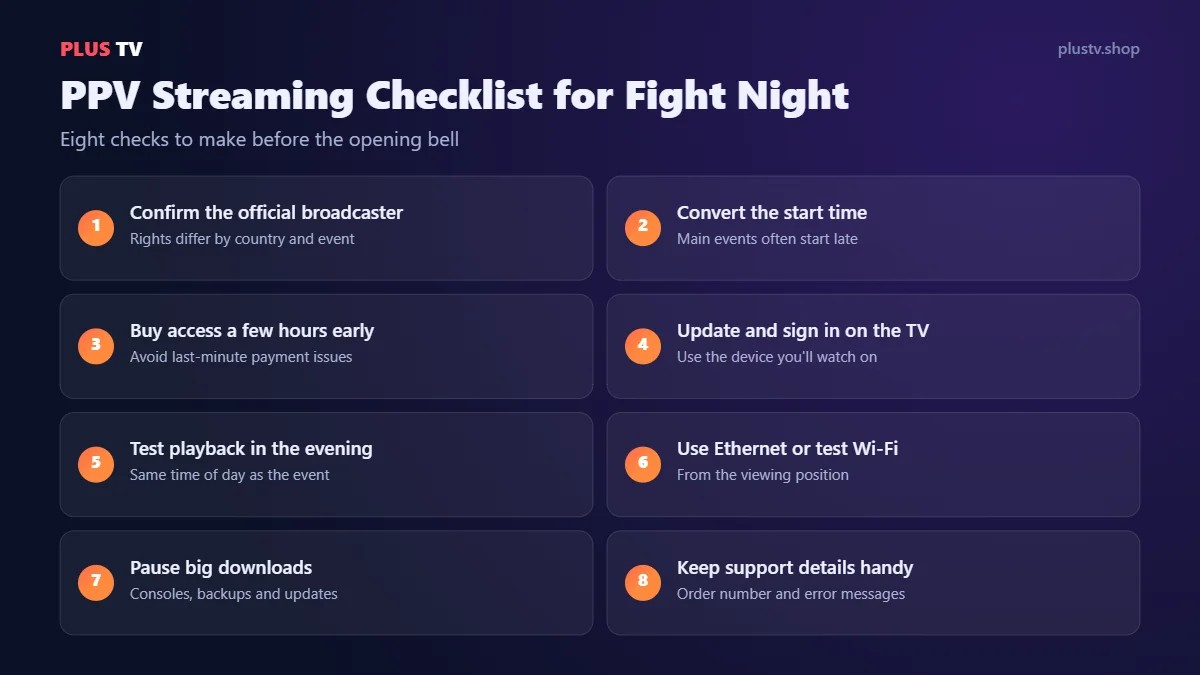
Use this quick list on the day of the event. Each item is explained in more detail below.
- Confirm which authorised broadcaster or platform carries the event in your country.
- Convert the main-card start time to your local time zone.
- Buy or confirm access at least a few hours early, not during the walkouts.
- Update and sign in to the app on the exact TV or device you will use.
- Test playback on that device at roughly the same time of day as the event.
- Use Ethernet if you can, or test Wi-Fi from the viewing position.
- Pause large downloads and game updates on other devices.
- Keep your purchase confirmation and the provider’s support contact handy.
Start with official event availability
Broadcast rights for boxing, mixed martial arts and other PPV events are sold country by country, and they change from one event to the next. The platform that showed the last big fight in your region may not have the next one. Before anything else, check the promoter’s official announcement or the event’s official website to see which authorised broadcaster or streaming service carries it where you live.
Be careful with assumptions. An event logo or a countdown banner inside an app does not guarantee that the event is included in your plan or available in your territory. Some services include general sports channels but sell premium fights separately as an add-on. If anything is unclear, ask the provider directly before fight night and keep the answer in writing.
If an event is not available on your current service, look for its authorised local broadcaster, an official venue showing, or the promoter’s own streaming platform. Unverified links found on social media are a common route to malware, phishing pages and fake payment forms, and the picture quality is usually poor anyway.
Get the timing right
Event posters are often printed in the promoter’s home time zone, and the time shown is usually the start of the whole card, not the main event. Convert the start time to your local time with a reliable tool such as the timeanddate.com time zone converter, and remember that daylight-saving changes can shift the difference by an hour.
Main events rarely start on schedule. Depending on how quickly the undercard finishes, the headline bout can begin an hour or more after the broadcast opens. Check the official schedule on the day and follow the broadcaster’s announcements rather than relying on a time someone posted weeks earlier. If you are planning around a specific matchup, our preview of the Smith vs Jones superfight is an example of how quickly fight-night plans can change.
A simple habit helps here: set two phone reminders, one for when the broadcast opens and one about an hour later for the likely main event. The first gives you time to sign in and settle any problems calmly; the second means you are not watching the clock through the whole undercard. If you are hosting, share the local start time with guests so nobody arrives during the walkouts.
Buy access early
Many viewers wait until the last minute to purchase, which means payment pages, sign-ins and activations all happen during the busiest few minutes of the night. Buy or confirm access a few hours ahead. That gives you time to deal with a declined card, a missing confirmation email or an activation code that needs entering on the TV.
Once you have paid, keep the confirmation email and note the order number. If you need help with billing or playback later, support will ask for it. Check whether the purchase covers replays and how long on-demand access lasts, as this varies between broadcasters.
Test the device you will actually watch on
The phone in your hand is not the same as the TV on the wall. Open the authorised app on the exact smart TV, streaming stick or box you plan to use. Check that the app is updated, that you are signed in, and that your subscription shows the event or the correct channel. Discovering that an app needs a device code or a password reset during the walkouts is one of the most common fight-night frustrations.
Play something live on that device for at least ten minutes, ideally in the evening when your network is busier. If the TV has an Ethernet port, use it. If you rely on Wi-Fi, test from the viewing position rather than next to the router. If you are setting up a new device, the installation tutorial walks through common apps and devices, and our guide to IPTV on Fire TV Stick covers that device in more depth.
Choose the right screen and device
The device you stream on often matters more than the size of your TV. Built-in smart TV apps are convenient, but older sets can be slow to update and may lose app support entirely. A recent external streaming stick or box usually gets updates for longer and has more processing headroom for high-motion sport.
When choosing between the devices you already own, compare them with the same live channel for ten minutes. Watch for how quickly the stream starts, whether it recovers smoothly from a brief drop, and whether the remote responds without lag. The device that handles that test best is the one to use on the night, even if it is not the newest.
A laptop connected to the TV by HDMI is a reasonable backup, but it brings its own issues: power-saving modes can dim the screen, notifications can pop up mid-round, and some browsers limit the resolution of protected streams. If you plan to use one, plug it into power, turn on do-not-disturb and test the HDMI output beforehand. Projectors can be great for a group, but test them in the room’s evening light, since fast motion and a washed-out picture are a poor combination.
Whatever you choose, keep the official app as your main route. Mirroring a phone to a TV adds another wireless link that can drop at the worst moment.
Prepare your home network
Live sports are less forgiving than films because the player cannot load much video in advance. A connection that is fine for on-demand content can struggle when a live stream needs steady delivery. A wired Ethernet connection removes most wireless interference, which is why it is the single most useful upgrade for a big night.
If you use Wi-Fi, keep the streaming device clear of the back of the TV where possible, and ask others in the household to pause large downloads, cloud backups and console updates during the event. As a rough guide to bandwidth, the US FCC publishes a broadband speed guide for common activities; leave extra headroom for everyone else using the connection. A fast speed test result is reassuring, but consistency matters more than the peak number.
Check picture and sound settings
Combat sports and other fast action reward a steady frame rate and commentary that stays in sync. During your test, watch for motion blur, repeated freezes and audio that drifts behind the picture. If the app offers a quality setting, a stable HD stream usually looks better than a higher resolution that keeps stopping.
On the TV itself, sports or “motion” picture modes can make movement look smoother or, on some sets, artificial. Try the setting you prefer before the event rather than during it. If you use a soundbar or AV receiver and notice lip-sync problems, check its audio delay setting. Write down any changes so you can reverse them.
Understand peak traffic on big nights
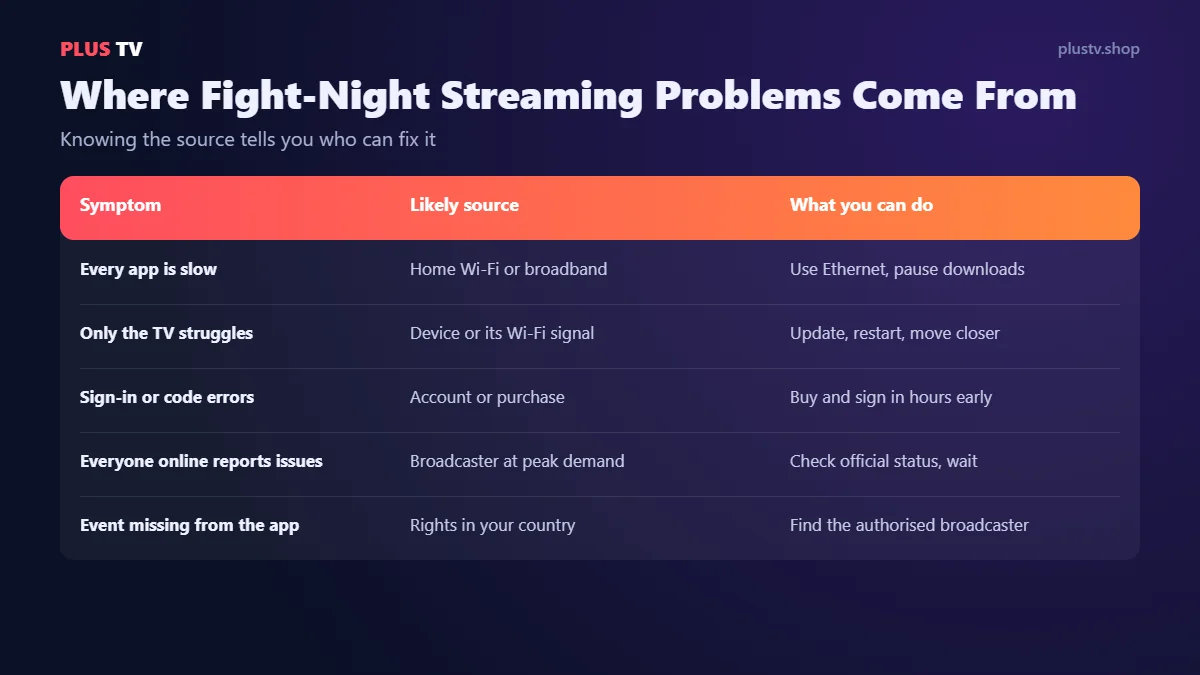
Popular events create sudden demand as millions of viewers join at once. Problems can occur at the broadcaster, in the delivery network or inside the app, and none of them are fixed by restarting your router. If playback fails, check the provider’s official status page or social channels before changing your home setup.
Joining a few minutes before the main event, rather than at the exact start time, can help you avoid the rush of sign-ins. If the stream drops briefly, give it a moment before restarting the app — a quick restart is fine, but repeatedly reopening it during a widespread outage rarely helps.
Have a troubleshooting plan ready
Decide in advance what you will do if the picture freezes, so you are not changing five things at once. A simple order works well:
- Close and reopen the app.
- Check whether other apps or devices are online.
- Restart the streaming device.
- Switch to a second authorised device, such as a laptop or tablet, if your plan allows it.
- Note the exact error message and time, then contact support.
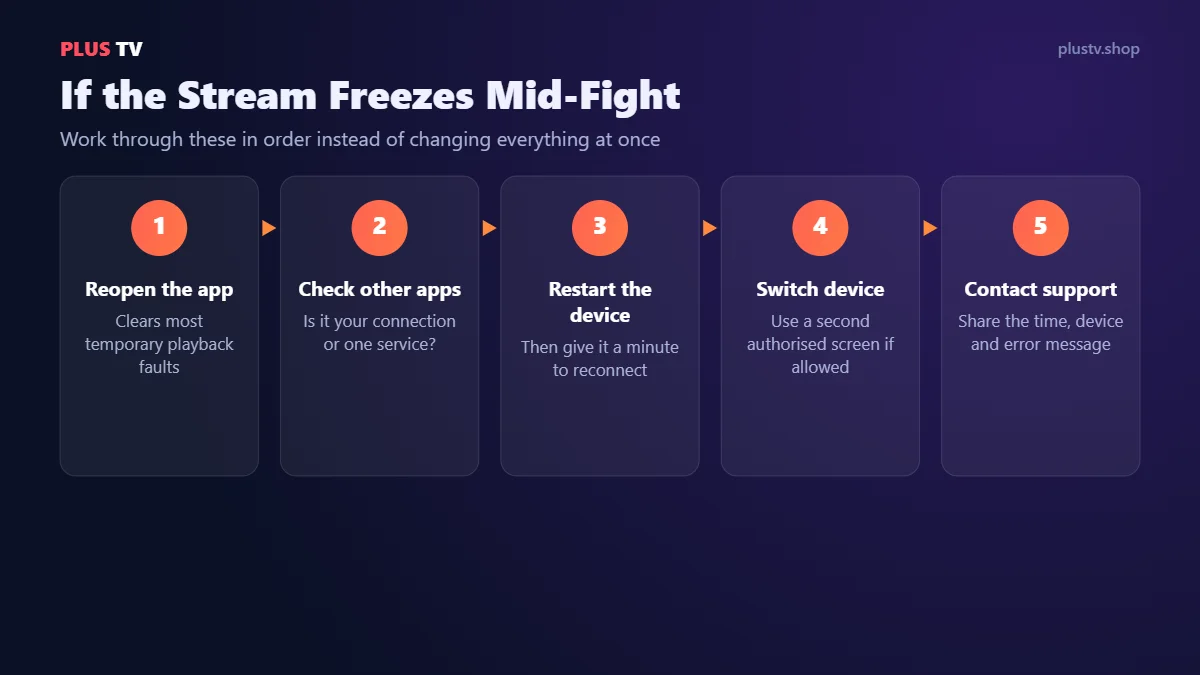
Avoid changing several settings at once, because that makes it impossible to know what helped. Keep the support contact and your order number somewhere you can reach quickly.
Common fight-night mistakes to avoid
Most problems on PPV nights are small and predictable. These are the ones that catch people out most often:
- Buying during the walkouts. Payment and activation take longer when everyone is doing the same thing at once.
- Testing on a phone, watching on a TV. A working phone says nothing about the app, sign-in or Wi-Fi signal on the television.
- Trusting the poster time. The advertised time is usually the start of the card, often in another time zone.
- Ignoring pending updates. A TV or app update that installs at the start of the broadcast can take several minutes.
- Leaving a game console downloading. One large download can take a big share of a home connection.
- Following unofficial links. They are a common source of malware and fake payment pages, and they are often taken down mid-event.
- Changing several settings at once. When something breaks, you will not know which change caused it.
None of these require technical knowledge to avoid. They simply need doing an hour or two earlier than feels necessary.
Plan for a full house
If several people will watch in different rooms, check how many simultaneous streams your plan permits and whether the PPV purchase applies to all of them. Some purchases are tied to one account or device. Watching together on one screen is simpler and puts less demand on your connection.
For guests, set up the room before they arrive: TV on the correct input, app open, volume level and remote within reach. It sounds obvious, but small delays add up when everyone is waiting for the first round.
Watching while travelling
If you will be away from home on fight night, check availability for the country you will be in, not the one you live in. Broadcast rights are territorial, so a purchase made at home may not play abroad, and the event may be carried by a different broadcaster locally. The provider’s help pages or terms usually explain how travel is handled.
Hotel and public Wi-Fi networks are often shared by many guests and can block or slow streaming. If you must use one, test it the evening before at a similar time. Mobile data can work as a backup, but live HD video uses a lot of it, so check your allowance and any roaming charges first. A local sports bar or official venue showing may be the simplest option when the event is a big one and your connection is uncertain.
After the event
Check whether the broadcaster offers replays, highlights or on-demand access and how long they remain available. If you had problems during the stream, report them with the time, device and error message while the details are fresh. Keep your purchase confirmation until any billing questions are resolved.
It is also worth noting what worked. If the wired connection made a difference, or a particular device performed better, write it down for the next event. Each PPV night becomes easier once you have a setup you trust.
Frequently asked questions
What do I need for PPV streaming at home?
An authorised source for the event in your country, a compatible TV or streaming device with the app installed and signed in, and a stable internet connection. A wired Ethernet connection is the most reliable option for live sports.
Does 4K guarantee a better PPV stream?
No. Picture quality depends on the source broadcast, your bandwidth, your display and the stability of the connection. A steady HD stream is usually a better experience than a 4K stream that keeps buffering.
When should I buy a PPV event?
A few hours before the broadcast starts. Buying early gives you time to sort out payment, sign-in or activation problems before the busiest part of the night.
Why did the main event start later than advertised?
Advertised times usually refer to the start of the card, and main events depend on how long the earlier bouts last. Follow the broadcaster’s live schedule on the night.
Can I watch a PPV event on more than one TV?
It depends on the provider’s rules for simultaneous streams and how the purchase is licensed. Check before the event rather than assuming one purchase covers every screen.
What should I do if the stream fails during the event?
Restart the app, check whether other services are working, and look at the provider’s status page. If the problem continues, contact support with the time, device and exact error message.
The takeaway
The best PPV streaming experience comes from verified access, early setup and a plan for the unexpected. Confirm the official broadcaster, buy early, test the real device on the real network, and keep support details close. Do that, and fight night is about the fight.
Related Articles
November 20, 2026
IPTV in Kosovo, Serbia and North Macedonia: Language and Device Compatibility Guide

November 20, 2026
IPTV in the Balkans: A Regional Viewing Guide for Families and Diaspora
November 20, 2026
IPTV in Albania: Devices, Albanian Language and Setup Guide

November 20, 2026