
🔥 FLEXIBLE & SECURE PAYMENTS — USDT • USDC • BTC • ETH • SOL • TRON (TRC20) • BINANCE PAY • KAST & MORE
How to Reduce Buffering During Live Sports and PPV Events
How to reduce buffering during live sports and PPV events: why live streams freeze, how to prepare your network and device, buffer and quality settings, and what to do mid-match.
 plustv
•
14 min read
Few things are more frustrating than a stream that freezes just as the decisive moment arrives. Live sport is the hardest thing you can ask a streaming setup to do: the action is fast, millions of people tune in at once, and the player cannot load much video ahead of time. This guide explains how to reduce buffering during live sports and PPV events, focusing on what makes live streams different from on-demand video and what you can realistically control at home.
No setup can guarantee zero interruptions, because some problems happen far upstream at the broadcaster or delivery network. What you can do is remove the avoidable causes, so that the problems that remain are rare and short.
Table of Contents
Quick answer: how to reduce buffering during live sports
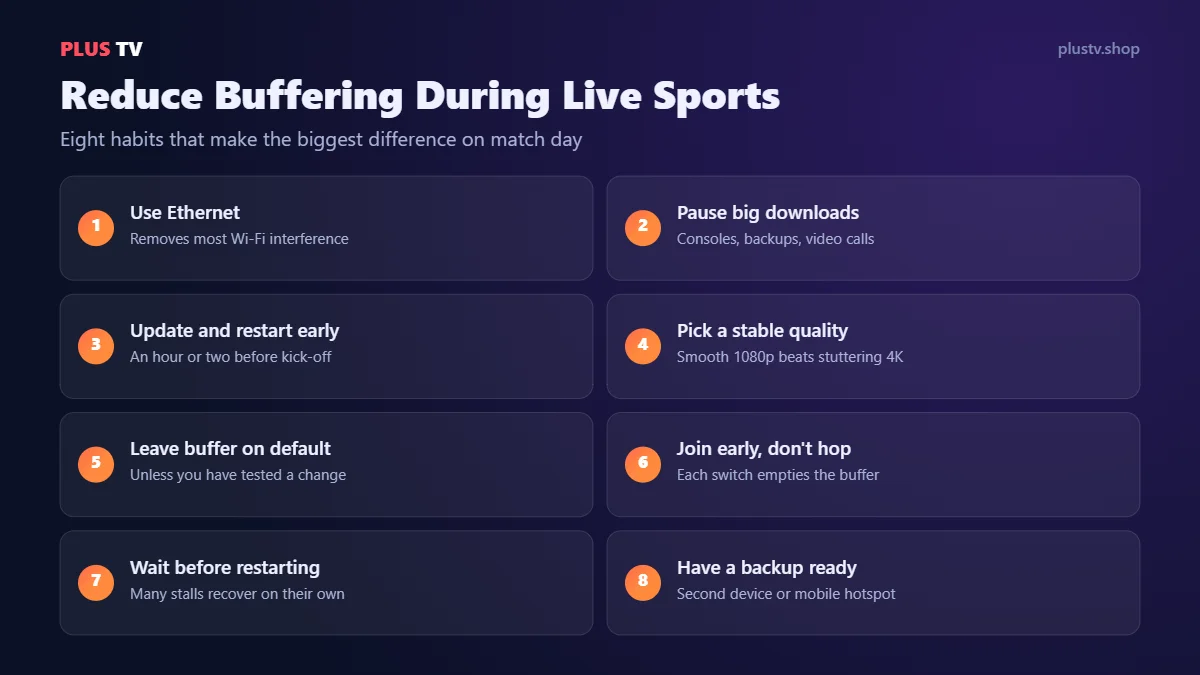
If the match starts soon, these steps give you the biggest improvement for the least effort:
- Connect the streaming device to the router with an Ethernet cable if at all possible.
- Pause large downloads, cloud backups and console updates on every other device.
- Update the app and device, then restart both an hour or two before kick-off.
- Set the player to a stable quality, such as 1080p, rather than forcing 4K.
- Leave the player’s buffer settings on default unless you have tested a change.
- Join a few minutes early and avoid hopping between channels during the event.
- If the stream stalls, wait a few seconds before restarting the app.
Why live streams buffer more than on-demand video
When you watch a film on demand, the player can download several minutes of video ahead of what you are watching. A brief slowdown in your connection is absorbed by that reserve, and you never notice it. Live streams cannot do this to the same extent. The video is being produced as the event happens, so the player can only stay a short distance behind the live action. With a smaller reserve, even a short drop in delivery can empty it, and the picture stops.
Live sport adds two more pressures. Fast motion is harder to compress, so sports streams often need more data than slower programmes to look sharp. And audiences arrive in sudden waves: at kick-off, at the main event’s walkouts or for a penalty shootout. Those spikes put pressure on every link in the chain, from the broadcaster’s systems to your local internet provider.
Understanding this helps you decide where to focus. Your home network and device are fully within your control. The broadcaster and delivery network are not, but your choices, such as when you join and which quality you select, can still reduce how much those upstream problems affect you.
Prepare your home network before the event
The most reliable way to reduce buffering during live sports is to prepare the network well before kick-off. The single most effective change is a wired connection. An Ethernet cable from the router to your TV or streaming box removes wireless interference, which is one of the most common causes of short, repeated freezes. If the device has no Ethernet port, check whether the manufacturer offers a compatible adapter.
If you must use Wi-Fi, test it from the exact spot where you will watch, at the same time of day as the event. Keep the streaming stick away from the back of the TV, where the screen can block the signal; a short HDMI extender often helps. If your router supports both 2.4 GHz and 5 GHz, compare them: 5 GHz is usually faster at short range, while 2.4 GHz reaches further through walls.
Then reduce competition for your connection. Ask others at home to pause large downloads, cloud photo backups, game updates and video calls during the event. A single large download can take a big share of your bandwidth at exactly the wrong moment. As a reference point, Netflix publishes its recommended internet speeds for HD and 4K video; live sports streams from other services may need more, and you should leave headroom for every other device in the house.
In a busy household, it also helps to agree on a simple match-day rule: no large downloads or console updates during the event, and video calls moved to another room or to mobile data. Five minutes of planning with everyone at home often does more for a smooth stream than any setting change.
Use your router’s prioritisation features carefully
Many routers include a feature called Quality of Service (QoS), sometimes labelled device priority or traffic prioritisation. It lets you tell the router to favour one device, such as your streaming box, when the connection is busy. For a household where several people are online during a big match, this can noticeably reduce buffering.
Settings differ between routers, so follow your router’s own documentation. Before changing anything, take a photo of the current settings so you can restore them. Change one setting at a time and test the result with a live channel. If you are not comfortable with router settings, skip this step; a wired connection and paused downloads will give you most of the benefit without the risk.
Get the device and app ready
Your streaming device matters too; a few minutes of preparation can reduce buffering during live sports more than any router tweak. An hour or two before the event, check for updates to the streaming device’s system software and the app you will use. Updates that install automatically at kick-off can take several minutes and sometimes need a restart. After updating, restart the device so it starts the event with a clean memory.
Free up some storage if the device is nearly full, and close apps running in the background. Low-cost streaming sticks have limited memory, and a device struggling to keep several apps open is more likely to stutter during demanding live video. If you are setting up a device for the first time, our installation tutorial and the guide to IPTV on Fire TV Stick cover the common options.
Choose a stable quality instead of the highest one
Choosing a sustainable quality level is one of the simplest ways to reduce buffering during live sports. It is tempting to pick the highest resolution available, but for live sport, stability usually matters more than pixel count. A smooth 1080p stream looks better in practice than a 4K stream that pauses every few minutes. If your app lets you choose quality, try a fixed HD setting during your test and compare it with the automatic or 4K option.
Automatic quality settings are designed to step down when the connection weakens, which can prevent a freeze. Some players handle this smoothly; others hesitate and buffer before adjusting. Your test will tell you which behaviour your app has. Also consider your screen: on a smaller TV or at a normal viewing distance, the difference between 1080p and 4K can be hard to see during fast action.
Frame rate matters too. Many sports broadcasts are produced at 50 or 60 frames per second to keep fast movement smooth. If your device or app offers a match-frame-rate option, test it before the event: when it works well, motion looks more natural, but on some TVs the switch causes a brief black screen each time a stream starts.
Understand player buffer settings
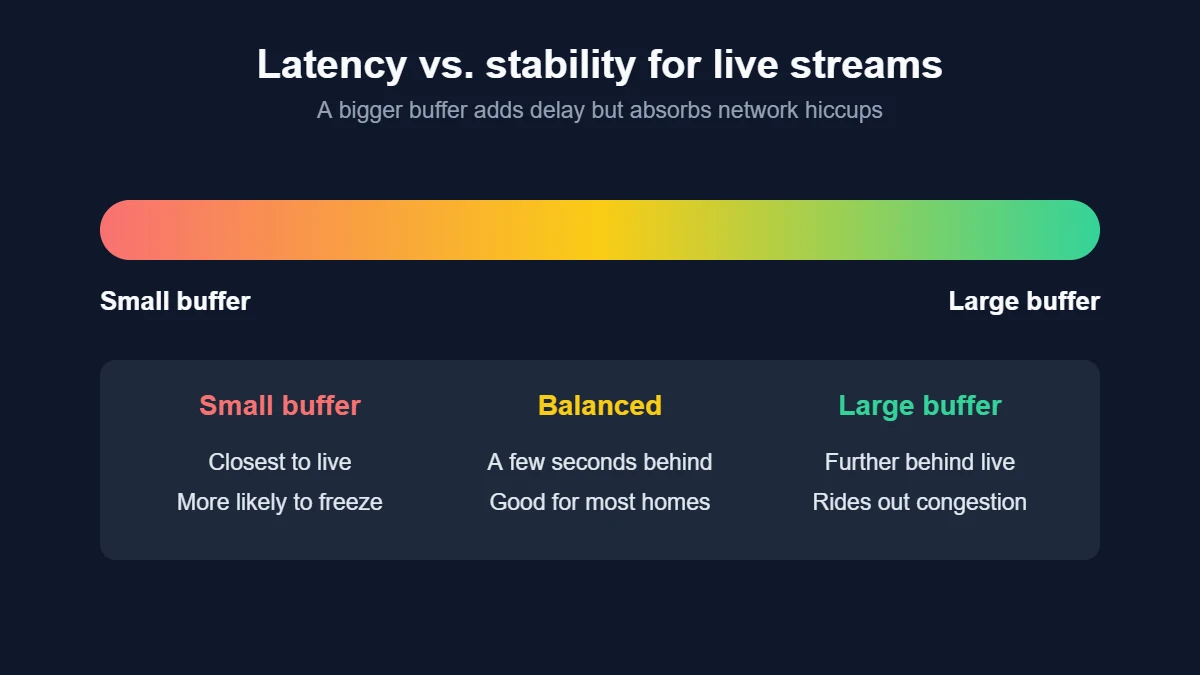
Some players let you adjust how much video they store ahead, which can help reduce buffering during live sports at the cost of extra delay. Some IPTV player apps let you change the buffer size, the amount of video the player holds before and during playback. A larger buffer can absorb short dips in delivery, which reduces brief freezes. The trade-off is that the stream starts more slowly and sits further behind the live action, so you may hear neighbours cheer a goal before you see it.
Treat buffer settings as a careful experiment, not a magic fix. Note the original value, change it one step at a time and test with the same live channel each time. Avoid copying “perfect” numbers from forums, because the right value depends on the app, the device and your connection. If a larger buffer does not help, return to the default. A buffer cannot create data that never arrives; if delivery stops for a long time, any buffer will eventually run out.
Latency versus stability: choose your trade-off
There is no single setting that will reduce buffering during live sports without some trade-off. Live streaming always balances two goals: being close to real time and being stable. Some services offer a low-latency mode that keeps you nearer the live action but leaves a smaller reserve, making freezes more likely on a weaker connection. Others prioritise stability and accept a longer delay.
If spoilers matter to you, for example because you follow live updates on your phone, low latency may be worth it on a strong wired connection. If you mainly want uninterrupted viewing, a slightly longer delay is often the better choice. Whatever you choose, mute score notifications on your phone during the event so a delayed stream does not spoil the moment.
Tactics during the event
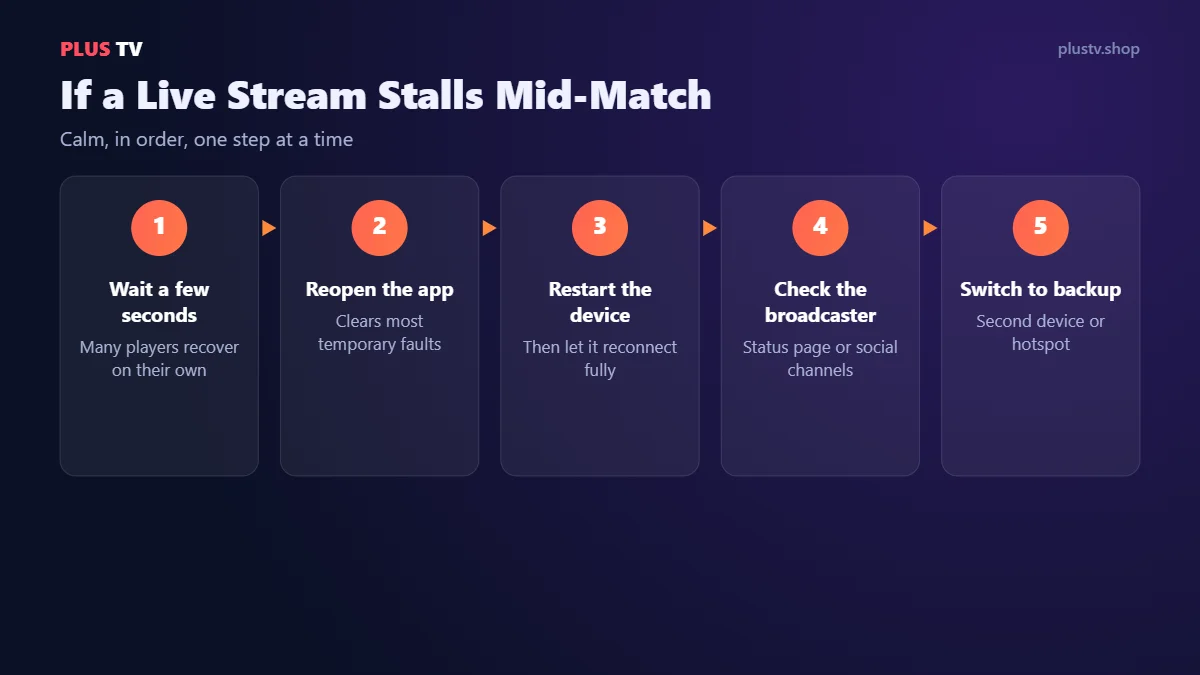
If problems start mid-match, there are still quick ways to reduce buffering during live sports without restarting everything. Once the event has started, a few habits help keep playback steady:
- Join a few minutes early. Arriving before the peak rush of viewers gives the player time to settle.
- Avoid channel hopping. Each switch starts a new stream with an empty buffer, which is when freezes are most likely.
- Do not rewind and fast-forward repeatedly. Jumping around in a live stream forces the player to rebuild its buffer each time.
- Give a stall a few seconds. Many players recover on their own; restarting too quickly can make things worse.
- Restart in order. If a stall persists, close and reopen the app first, then restart the device.
- Check whether others are affected. If the broadcaster’s status page or social channels report problems, waiting is usually more effective than changing your setup.
Common myths about live-stream buffering
Plenty of advice circulates before big events. Some of it helps; some of it wastes time or makes things worse.
- “A faster internet plan will fix it.” Not necessarily. If the problem is Wi-Fi interference, a busy household or congestion upstream, extra plan speed may change nothing. Test with Ethernet before upgrading.
- “A VPN always stops buffering.” A VPN changes how your traffic is routed. Sometimes that helps, often it adds a slower hop, and it does not change what you are entitled to watch. Test with and without it, where that is lawful and allowed by the service.
- “Clear the cache before every match.” Clearing an app’s cache can help when an app misbehaves, but doing it routinely is unnecessary. Clearing app data can sign you out right before kick-off.
- “Bigger buffer settings are always better.” Larger buffers add delay and only cover short dips. They cannot compensate for a stream that stops arriving.
- “It must be my provider.” Sometimes it is, but home networks are a very common cause. A quick comparison with another app on the same device usually tells you which.
Have a backup plan ready
Even with careful preparation, you cannot always reduce buffering during live sports to zero, so plan a fallback. Even a well-prepared setup can be affected by a problem upstream. Decide your backup before the event: a second authorised device such as a laptop or tablet, a different supported app, or a mobile hotspot if your home connection fails entirely.
A mobile hotspot can rescue an evening, but live HD video uses a lot of data and mobile networks can also be busy during major events. Check your data allowance and test the hotspot with a live channel in advance. Keep your login details and the provider’s support contact somewhere you can reach quickly, without needing the TV that has just frozen.
Track problems to fix them next time
Keeping simple notes is how you reduce buffering during live sports over the long term rather than for a single event. If buffering still happens, note the time, the channel, the device and whether other apps were affected. A pattern quickly emerges. Freezes at the same moments as big audience spikes point upstream; freezes whenever someone else is online point to your home network; freezes on one device only point to that device or its signal.
These notes are also what support teams need to help you. A report that says “the stream froze for 20 seconds at 21:14 on the living-room TV, wired connection, other apps fine” is far more useful than “it keeps buffering”. If your provider publishes a channel list with alternative feeds for the same event, note which ones performed best.
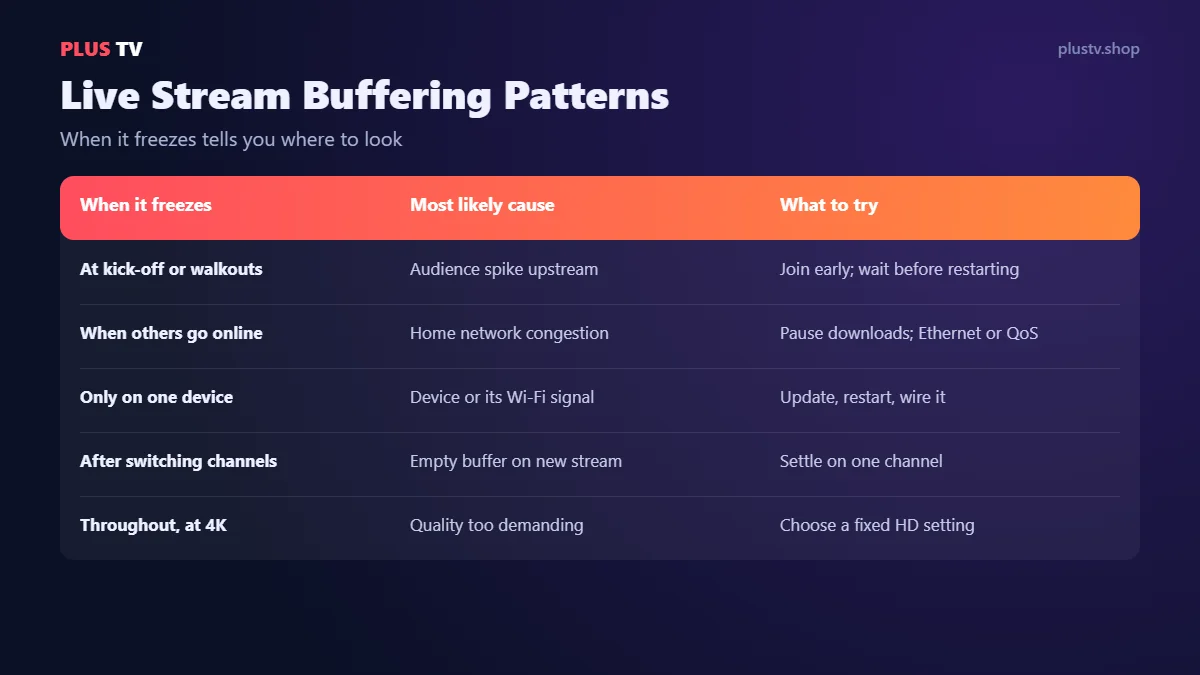
Buffering patterns at a glance
| When it freezes | Most likely cause | What to try |
|---|---|---|
| At kick-off or walkouts | Audience spike upstream | Join early; wait before restarting |
| Whenever others go online | Home network congestion | Pause downloads; use QoS or Ethernet |
| Only on one device | Device or its Wi-Fi signal | Update, restart, move closer or wire it |
| After switching channels | Empty buffer on a new stream | Settle on one channel; avoid hopping |
| Throughout, at 4K | Quality too demanding | Choose a fixed HD setting |
Frequently asked questions
Why does live sport buffer more than films?
Live streams can only stay a short distance behind the real action, so the player holds a smaller reserve of video. Sports also involve fast motion and sudden audience spikes, which add pressure on the connection and the delivery network.
Does Ethernet really reduce buffering during live sports?
In most homes, yes. A wired connection removes wireless interference, which is a common cause of short, repeated freezes. It cannot fix problems at the broadcaster, but it removes one of the biggest variables at home.
Should I increase the buffer size in my IPTV player?
It can help absorb short dips, but it also adds delay and slower start times. Change it gradually, test with a live channel and return to the default if it does not help.
Is 4K worth it for live sports?
Only if your connection, device and TV handle it reliably. A stable 1080p stream is usually more enjoyable than a 4K stream that keeps pausing.
What is low-latency mode?
A setting some services offer to keep you closer to the live action. It leaves a smaller reserve of video, so it works best on a strong, stable connection.
What should I do if the stream freezes during a big match?
Wait a few seconds, then close and reopen the app, then restart the device. Check whether the broadcaster is reporting problems before changing your network settings.
Final thoughts
To reduce buffering during live sports, start with the basics that make the biggest difference: a wired connection, a quiet network, an updated device and a stable quality setting. Treat buffer and router settings as careful experiments, join early, avoid channel hopping and keep a backup ready. You cannot control every link between the stadium and your screen, but you can make sure your own setup is never the weakest one.
Related Articles

November 20, 2026
IPTV in Kosovo, Serbia and North Macedonia: Language and Device Compatibility Guide

November 20, 2026
IPTV in the Balkans: A Regional Viewing Guide for Families and Diaspora

November 20, 2026
IPTV in Albania: Devices, Albanian Language and Setup Guide

November 20, 2026