
🔥 FLEXIBLE & SECURE PAYMENTS — USDT • USDC • BTC • ETH • SOL • TRON (TRC20) • BINANCE PAY • KAST & MORE
Roku Closed Captions Not Working? 8 Fixes for Every App
Roku closed captions not working? Fix missing, faint or out-of-sync captions with 8 checks for Roku settings, app subtitle menus and caption style.
 plustv
•
8 min read
If you find your Roku closed captions not working, the cause is usually one of three things: the captions are switched on in the wrong place, the app ignores Roku’s own caption settings, or the programme simply has no caption track. Working out which one applies takes a couple of minutes and avoids a needless reset.
This guide covers where Roku captions are controlled, why some apps behave differently, and how to fix captions that are missing, out of time, unreadable, or that vanish after an ad break. Menu names below follow Roku’s current support documentation; older software may label them slightly differently.
Table of Contents
Why are Roku closed captions not working?
Roku has a device-wide caption setting, but it does not control every app. Roku’s own closed captioning guide explains that for some services, captions are activated inside the app, and the Roku settings have no effect on that content. That single detail explains most “it works in one app but not another” reports.
| Symptom | Most likely cause | Fix to try first |
|---|---|---|
| No captions in any app | Captions mode is Off | Set Captions mode to On always |
| Captions work in some apps only | App uses its own subtitle menu | Turn captions on inside that app |
| Captions missing on one title | Title has no caption track | Test another title in the same app |
| Style changes have no effect | App draws its own captions | Use the app’s caption style options |
| Captions drop after ads | Stream switches during the break | Restart the title; update the app |
Step 1: Check the type of text you need
Closed captions show dialogue plus sound cues such as [door slams] or [music]. Subtitles usually show dialogue only, often translated. Audio description is a spoken narration track, not on-screen text. Make sure you are looking for the right feature, and check that the programme lists a caption or subtitle track in your language.
Step 2: Turn on captions in Roku settings
For apps that follow Roku’s caption settings, start at the home screen:
- Press Home on the Roku remote and open Settings.
- Select Accessibility. If you do not see it, select Captions.
- Choose Captions mode and pick when captions should appear.
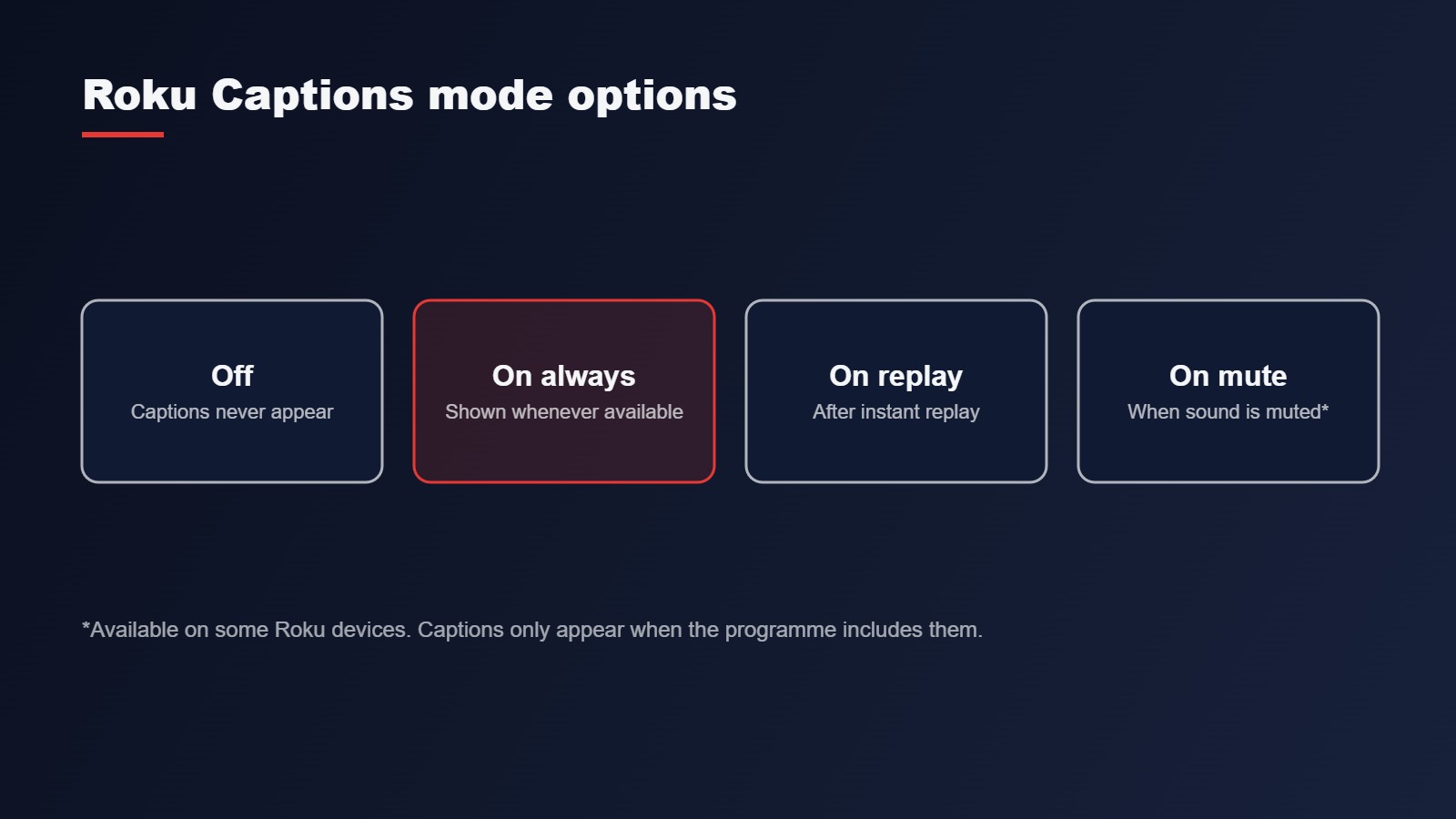
On always is the right choice if you rely on captions. On replay only shows them after you use instant replay, which catches people out: captions seem to work at random. On mute, where available, shows Roku captions only while the sound is muted.
Step 3: Use the Star button during playback
Start the programme, press the Star (*) button on the remote, and look for Closed captioning in the Options menu. Roku documents this as a quick way to switch captions on or off while watching. If the Star menu has no caption option, the app is probably handling captions itself.
Step 4: Turn captions on inside the app
Many large streaming apps manage captions and subtitles through their own player menu. Pause the programme and look for Audio & Subtitles, CC, or a speech-bubble icon. Roku’s app feature troubleshooting page advises using the app’s own setting when a change on the Roku device does not alter what you see in the app.
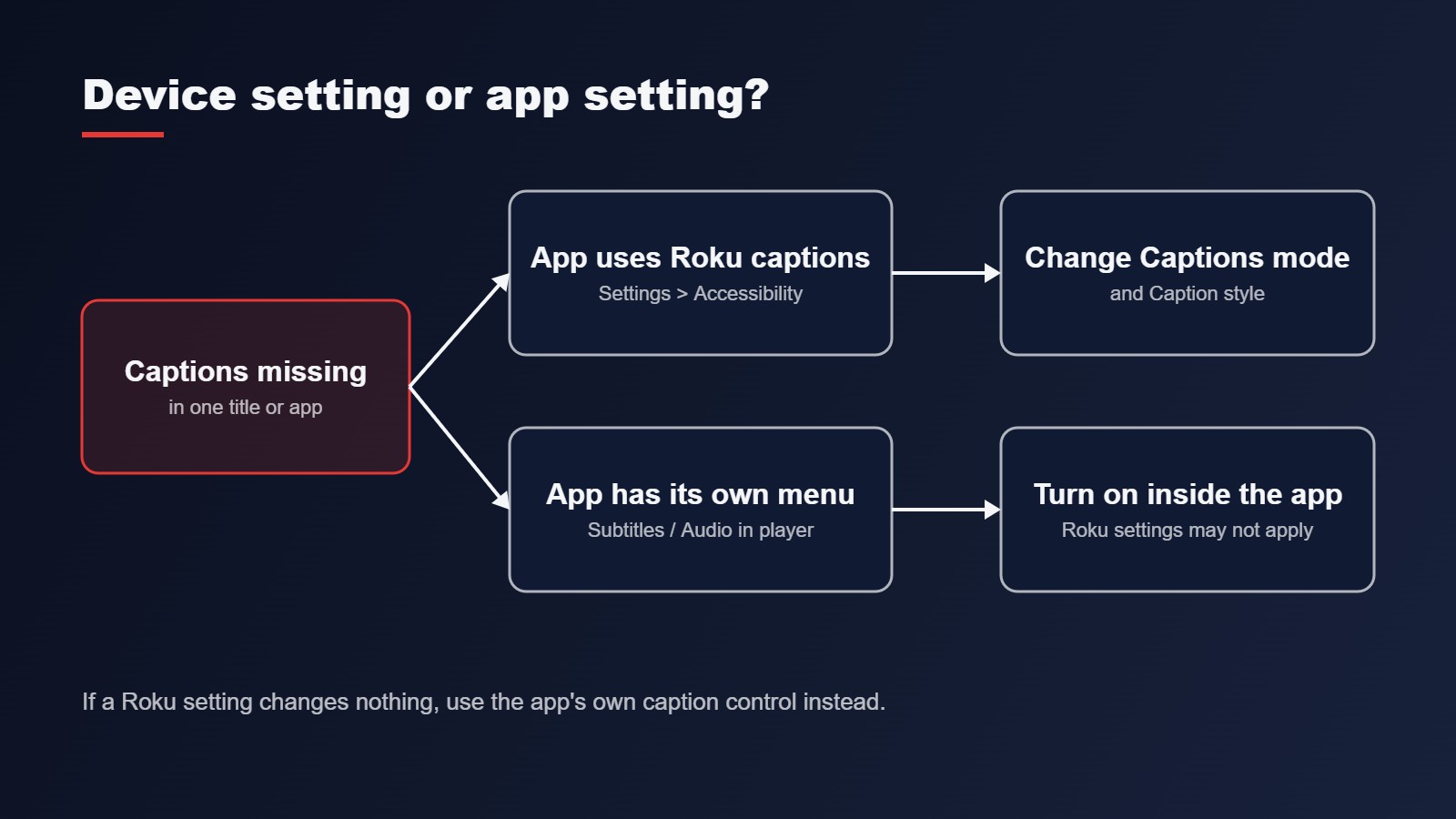
If Roku closed captions are not working in just one app while others are fine, the fix belongs to that app. Update it, or remove it and add it again from the official Roku Channel Store, then sign back in.
Step 5: Test a title you know has captions
A missing caption option can be a content issue, not a device fault. Open a different programme from the same service and check its subtitle list. If the second title works, note the name and episode of the first one and report it to the service. Live channels and older catalogue titles are the most likely to have gaps.
Step 6: Make Roku captions easier to read
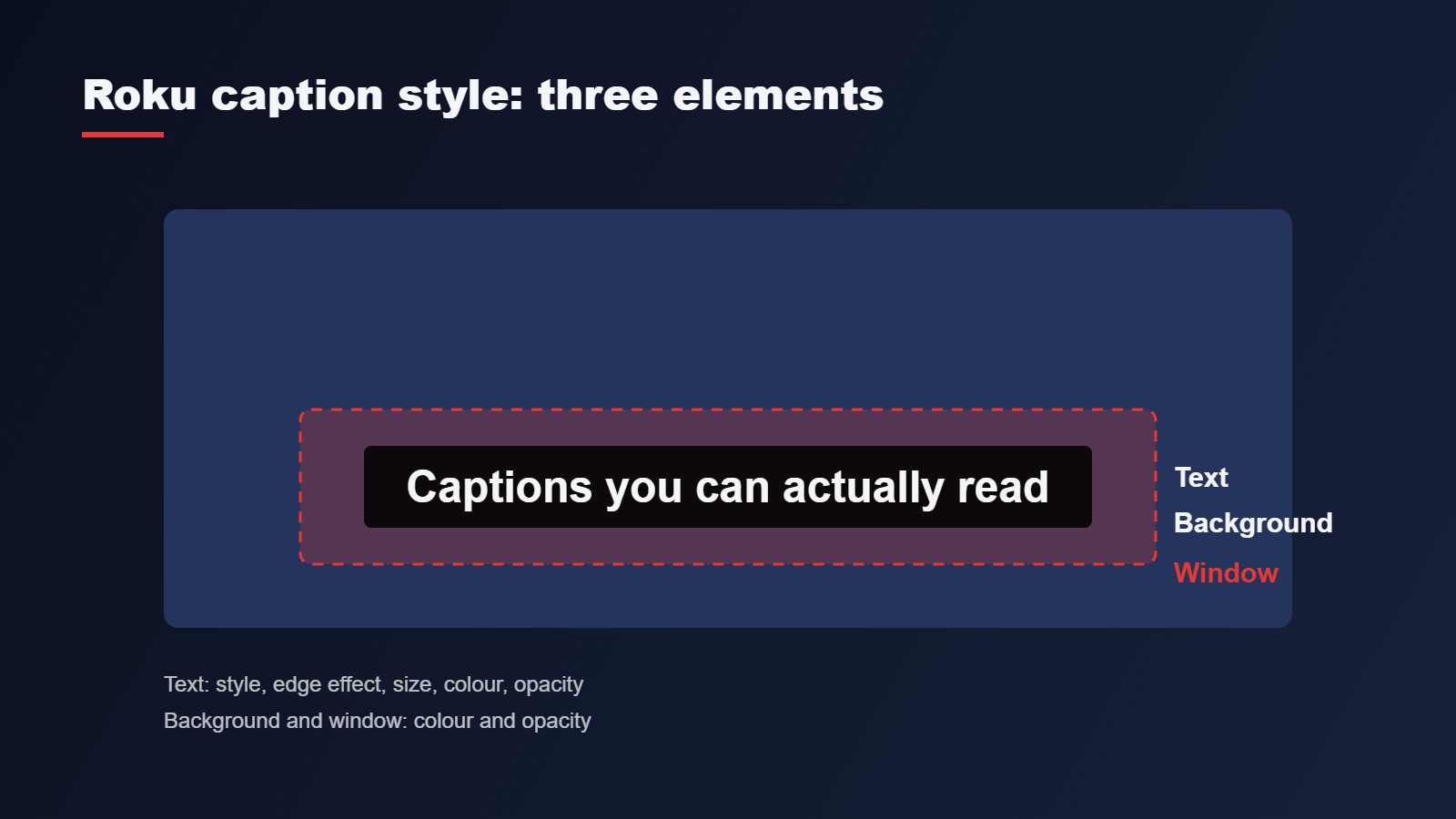
In apps that use Roku’s styling, go to Settings > Accessibility > Caption style. Roku lets you adjust three elements, each with a live preview: the text (font, edge effect, size, colour and opacity), the background behind the text, and the window around the caption area.
- Start with large white or yellow text on a black background for high contrast.
- Add a drop-shadow or raised edge if text blends into bright scenes.
- If an app shows faint captions after you change the style, try choosing explicit colour and opacity values rather than “Default”. Several Roku community users report this helps with apps that interpret defaults differently.
- Remember that apps with their own caption engine will ignore these settings; adjust style inside the app instead.
Step 7: Fix captions that are out of sync or drop after ads
If captions appear before or after the dialogue, check whether it happens in every title or just one. A single title points to the caption file itself, which only the service can fix. Do not change your TV or soundbar’s audio delay to compensate: that shifts the sound, not the captions, and usually makes things worse.
Captions that disappear after a commercial break often return if you back out and resume the programme. Ad breaks can switch the stream, and some apps fail to reload the caption track afterwards. If it happens every time, report the app, programme and approximate time to the service. If the picture also stalls when this happens, our guide to fixing streaming buffering can help rule out a network cause.
Step 8: Restart and update before any reset
Exit the app completely, then restart the Roku from Settings > System > Power > System restart (or unplug it for about ten seconds). Check for a software update under Settings > System. A restart clears temporary playback faults without touching your settings.
A factory reset removes all apps, sign-ins and accessibility preferences. Keep it for when Roku support specifically asks for it, not as a first fix for captions.
Captions versus the Roku screen reader
If your Roku reads menus aloud, that is the screen reader (Audio Guide), not captions. It is controlled separately under Accessibility. Turning it off will not affect Roku subtitles or captions, so leave it alone if someone in the household relies on it.
Who to contact: Roku or the streaming app?
Roku’s support guidance draws a useful line. If captions or sound misbehave in only one app, contact that streaming service, because each provider builds and updates its own app. If Roku captions fail in every app, after you have checked Captions mode and restarted the device, contact Roku support instead.
Whichever you contact, a short note speeds things up: your Roku model and software version (under Settings > System > About), the app name, the programme and episode, the caption language, and whether you used the Roku setting, the Star menu or the app’s own subtitle menu. That record also stops you repeating the same tests twice.
Quick checklist: Roku closed captions not working
- Set Captions mode to On always, not On replay.
- Try the Star button during playback.
- Look for a subtitle or CC menu inside the app itself.
- Test a second title from the same service.
- Adjust Caption style for readability, or use the app’s own style options.
- Update the app and the Roku software, then restart.
- Report title-specific problems to the streaming service with the episode and time.
Frequently asked questions
Why do Roku captions work in one app but not another?
Some apps use Roku’s caption system and some use their own. If a Roku setting changes nothing in an app, switch captions on from that app’s player menu.
Why do captions only appear sometimes?
Captions mode is probably set to On replay, which shows captions only after you press instant replay. Change it to On always.
Why won’t my caption size change?
The app likely draws its own captions and ignores Roku’s Caption style settings. Check the app for its own text size option.
Will a factory reset fix Roku subtitles?
Rarely. Missing Roku subtitles are almost always a settings, app or content issue. Try the steps above first, since a reset erases all your apps and preferences.
Who should I contact if one show has no captions?
Contact the streaming service. Roku cannot add a caption track that the provider did not include.
Sources
- Roku Support: How to enable closed captioning
- Roku Support: Having trouble using a streaming app feature
Roku updates its software regularly. If a menu looks different, check Roku’s current support article for your device.
Related Articles
November 20, 2026
IPTV in Kosovo, Serbia and North Macedonia: Language and Device Compatibility Guide

November 20, 2026
IPTV in the Balkans: A Regional Viewing Guide for Families and Diaspora

November 20, 2026
IPTV in Albania: Devices, Albanian Language and Setup Guide
November 20, 2026