
🔥 FLEXIBLE & SECURE PAYMENTS — USDT • USDC • BTC • ETH • SOL • TRON (TRC20) • BINANCE PAY • KAST & MORE
How to Fix Smart TV Audio Delay: 9 Proven Lip Sync Checks
Fix smart TV audio delay with 9 practical checks for HDMI ARC/eARC soundbars, Bluetooth headphones, PCM settings and apps, without a factory reset.
 plustv
•
10 min read
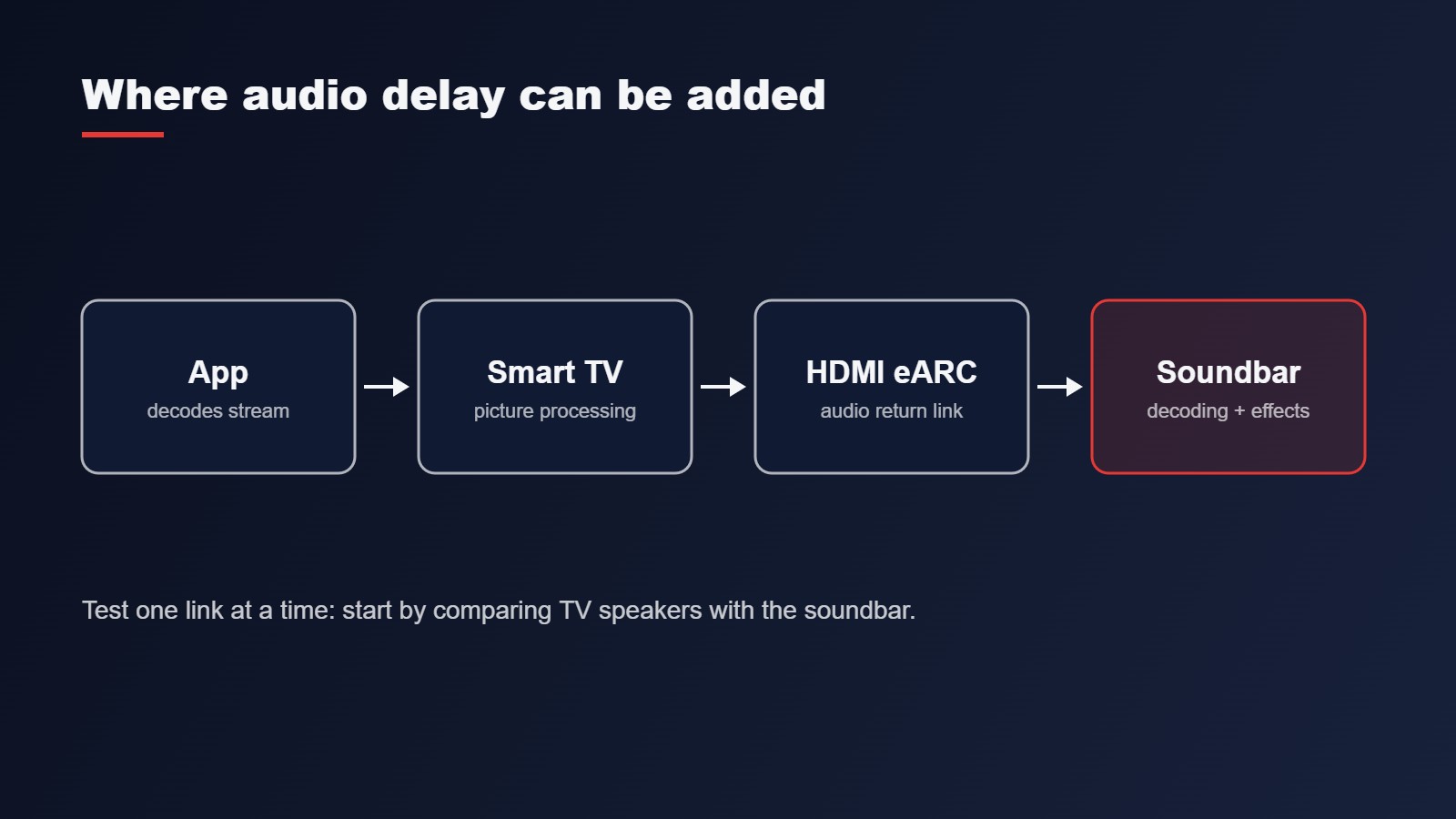
To fix smart TV audio delay, you first need to know where the delay is added. Lip sync errors usually come from one link in the chain: the streaming app, the TV’s picture processing, an HDMI ARC or eARC soundbar, or Bluetooth headphones. Testing those links one at a time is faster than changing every sound setting and hoping something sticks.
This guide walks through nine checks in the order that usually finds the cause quickest. Menu names vary by brand and software version, so treat the labels below as examples and confirm them in your TV or soundbar manual.
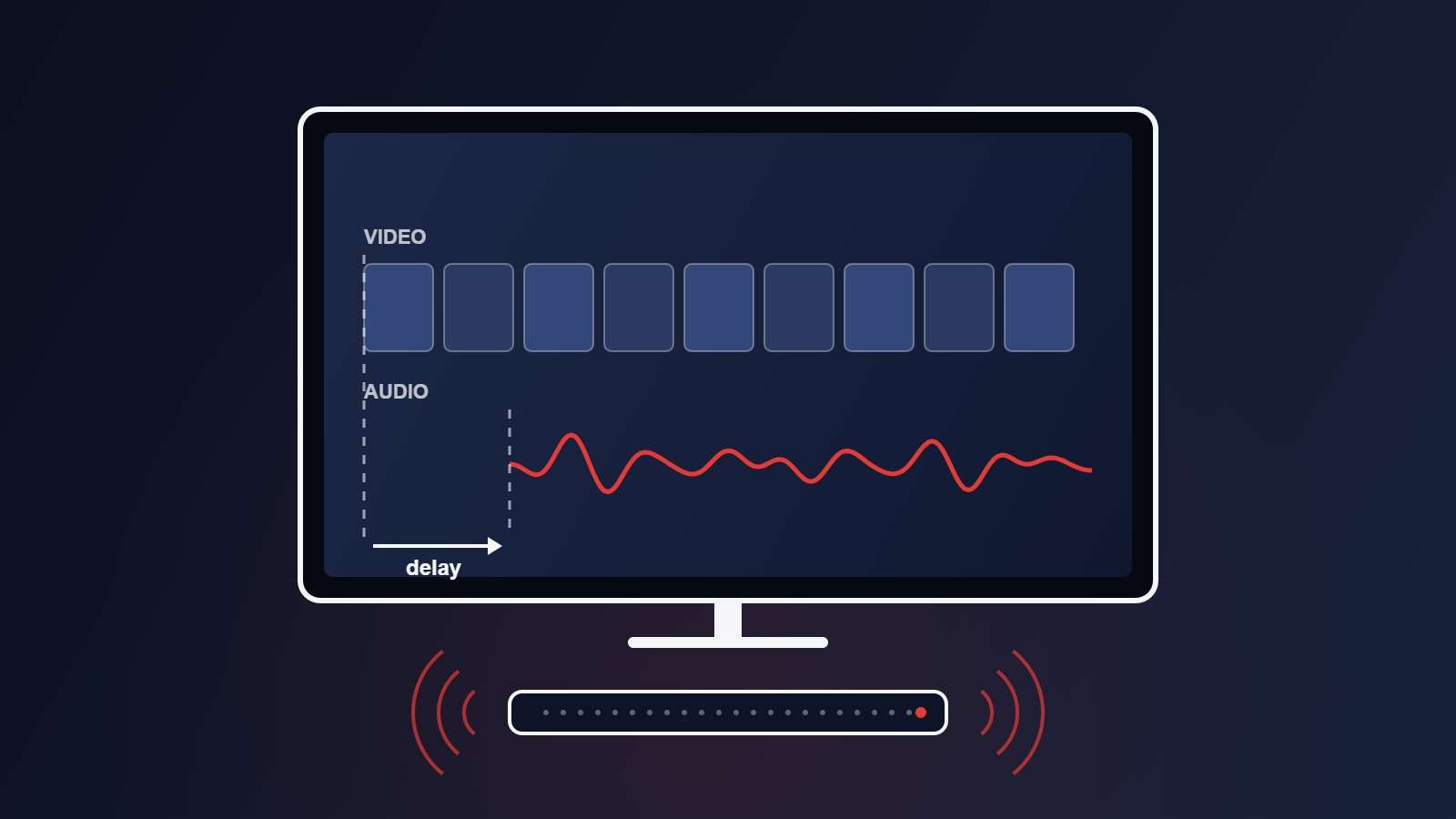
Table of Contents
What causes smart TV audio delay?
Video and audio take different paths through your equipment. Picture processing (upscaling, motion smoothing, HDR tone mapping) holds the image back for a moment, while a soundbar or receiver may spend time decoding and adding effects to the sound. Samsung’s support pages note that audio and video are processed at slightly different speeds, and that the gap is usually too small to notice. When it is noticeable, one device is adding more delay than the others can compensate for.
| What you notice | Most likely source | Where to start |
|---|---|---|
| Delay only with a soundbar or receiver | HDMI ARC/eARC link or soundbar processing | Steps 2–5 |
| Delay only with wireless headphones | Bluetooth audio lag | Step 6 |
| Delay in one app only | The app or its audio format | Step 7 |
| Delay on one HDMI input only | The external player’s output settings | Step 7 |
| Delay everywhere, even on TV speakers | TV picture processing or firmware | Steps 5, 8 and 9 |
Step 1: Work out whether sound is late or early
Play a close-up dialogue scene you know well and watch the speaker’s lips, not an action sequence. If the mouth moves before you hear the words, audio is late. If you hear the words first, audio is early and the picture is the slow part.
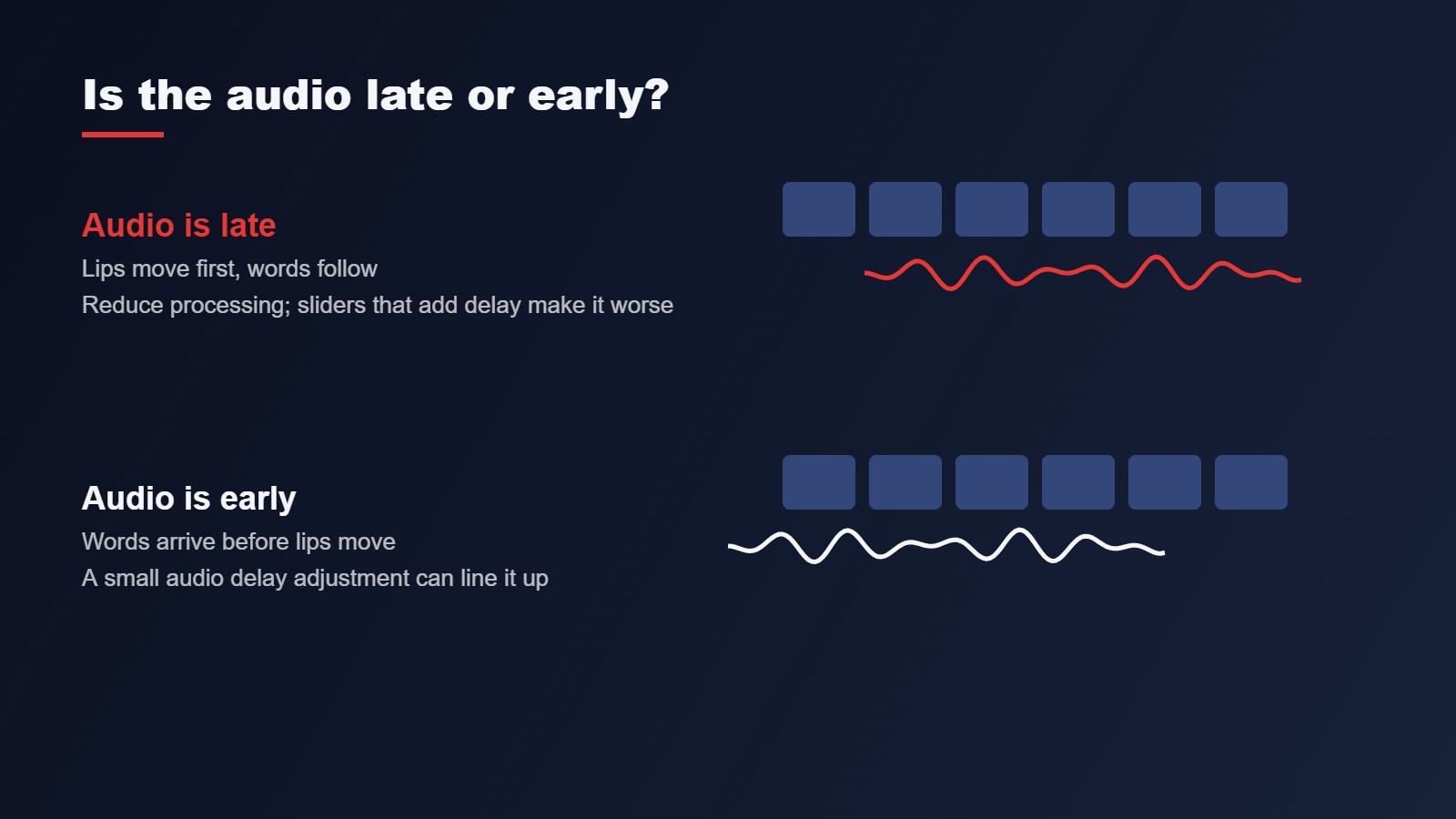
This matters because most audio sync controls can only add delay to the sound. That helps when audio is early, but it makes late audio worse. Note the direction before you touch any slider.
Step 2: Test the TV speakers on their own
Switch the sound output to the TV’s built-in speakers and replay the same scene. If the lip sync is now correct, the problem sits in the external audio path: the HDMI connection, the soundbar’s processing, or a wireless link. If the delay is still there, look at the app, the source device, or the TV itself.
This single comparison usually cuts the list of suspects in half, so do it before anything else when you are chasing a smart TV audio delay.
Step 3: Check the HDMI ARC or eARC connection
Make sure the soundbar is plugged into the TV port labelled ARC or eARC, and into the matching port on the soundbar. Reseat both ends of the cable and confirm the TV’s audio output is set to the HDMI device rather than “Auto” switching between outputs.
eARC makes automatic lip sync correction a required feature, whereas it was optional on standard ARC. As RTINGS points out, how well that correction works still depends on the devices and apps involved, so eARC reduces the chance of a smart TV audio delay rather than ruling it out. The HDMI 2.1 specification overview explains what eARC adds.
A pricier HDMI cable will not fix a timing problem on its own. Swap in a known-good cable only to rule out a faulty connection.
Step 4: Try PCM, Auto and passthrough output
The TV’s digital audio output setting usually offers PCM, Auto, or Passthrough (sometimes called Bitstream). With PCM, the TV decodes the soundtrack before sending it on. With passthrough, the TV forwards the original format and the soundbar decodes it. Each path adds a different amount of processing time.
Test each option with the same scene. Pick the one that keeps lip sync correct with your equipment, and check whether you lose surround sound in the process. If PCM fixes the timing but drops Dolby Atmos, you can decide which matters more for the way you watch.
Step 5: Switch off extra sound and picture processing
Virtual surround, dialogue enhancement, night mode, and room correction all take processing time on a soundbar. Select a basic sound mode, check the sync, then turn useful features back on one at a time to find any that add noticeable delay.
Picture settings matter too. Motion smoothing and heavy noise reduction delay the image, which can make audio appear early. They can also make mouths look slightly unnatural even when timing is correct, so do not try to “fix” a motion artifact with an audio offset. Game Mode cuts picture processing, but it can interact with soundbar sync: Roku, for example, suggests turning Game Mode off when troubleshooting sync with its soundbars. Test it both ways.
Step 6: Reduce Bluetooth audio lag
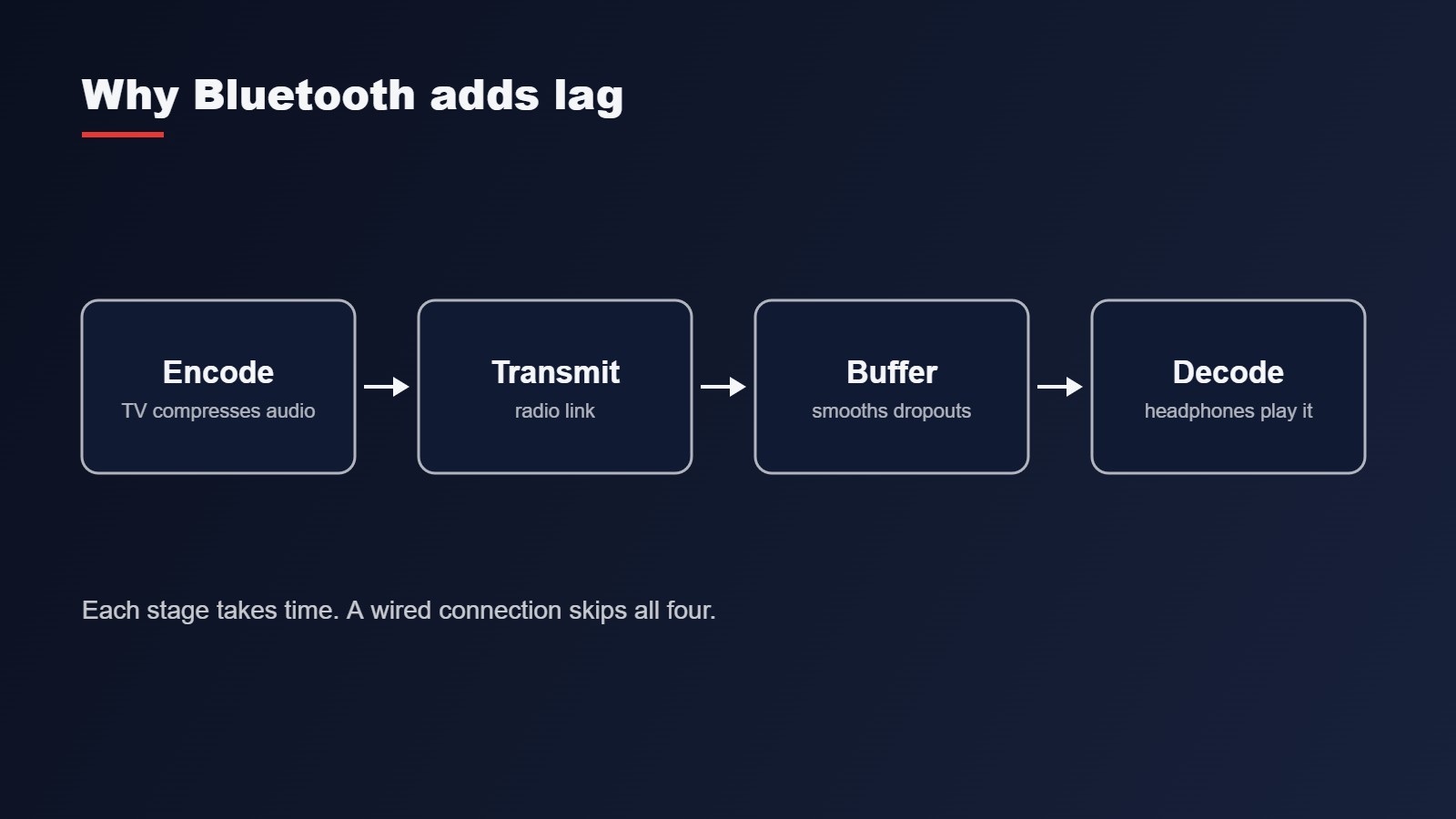
Bluetooth headphones and speakers add encoding, transmission, buffering, and decoding. Some TV and headphone pairs compensate well; others show obvious lag. Samsung states plainly that no setting resolves Bluetooth or wireless speaker sync on its TVs, and its soundbars disable the sync control when Bluetooth is the source.
- Remove the pairing and pair again, with no other Bluetooth audio devices connected.
- Keep the headphones within a few metres of the TV, with a clear line of sight.
- Use a headphone sync setting if your TV has one.
- For persistent Bluetooth audio lag, a wired connection or a low-latency transmitter designed for TVs is the more reliable option.
Step 7: Compare apps, inputs and refresh-rate settings
A smart TV audio delay that appears in only one place points to that source. Play similar content in a built-in TV app and on a connected streaming stick or box. Samsung recommends this exact comparison: if pre-installed apps are fine, the problem lies with the external source or the content. If only one app is affected, update or reinstall it and check its audio options. If only one external player is affected, review its audio format and display settings.
Automatic frame-rate or refresh-rate matching on streaming players makes the TV change modes as each video starts, and some users report sync issues tied to it. If the delay started after enabling that option, test with it off. Avoid changing a global setting to correct one faulty title unless you are happy with the effect on everything else. If playback also stutters, our guide to fixing streaming buffering covers network causes.
Step 8: Use the audio sync slider the right way
Once you know the direction of the error, use the sync control. On many Samsung TVs it sits under Sound > Expert Settings > Digital Output Audio Delay, and it affects the digital output to a soundbar rather than the TV speakers. Soundbars often have their own control: Samsung’s soundbar remotes offer an Audio Sync adjustment, and Roku Streambars can be adjusted through the Roku mobile app.
- Write down the current value so you can return to it.
- Move the slider a small step, then replay the same 20-second clip.
- Repeat until lips and words line up, then check a different program to confirm.
If you reach the maximum and audio is still late, the slider cannot help. Go back to Steps 3–5 and remove processing instead.
Step 9: Update firmware before considering a reset
Check for software updates on the TV, the soundbar, and any streaming device, and read the release notes. Manufacturers do ship fixes for compatibility and timing problems, and they occasionally introduce new ones, so note the version numbers before and after updating.
Treat a factory reset as a last resort. It removes app logins, network settings, and accessibility preferences, and it rarely fixes a delay that firmware and settings could not. A “reset sound settings” option, where available, is a gentler first step.
Quick checklist to fix smart TV audio delay
- Confirm whether audio is late or early using a close-up dialogue scene.
- Compare TV speakers with the soundbar or headphones.
- Check the ARC/eARC port and cable, and set the output to the HDMI device.
- Test PCM, Auto and passthrough output modes.
- Turn off extra sound effects and motion smoothing, then restore them one at a time.
- Compare a built-in app with an external streaming device.
- Adjust the sync slider in small steps, and only if audio is early.
- Update firmware on every device in the chain before any reset.
Keep a simple test log
After a few tests it is easy to forget which change did what. A short log, kept on your phone, makes each comparison count and shows a pattern quickly, such as a delay that only appears after the soundbar wakes from standby or after switching HDMI inputs. Use the same scene for every row.
| Test | Output and setting | Result |
|---|---|---|
| 1 | TV speakers, default settings | In sync |
| 2 | Soundbar via eARC, passthrough | Audio late |
| 3 | Soundbar via eARC, PCM | In sync, surround lost |
| 4 | Soundbar, passthrough, virtual surround off | In sync |
When to contact support
If the smart TV audio delay persists across apps, inputs and output modes, contact the TV or soundbar manufacturer. Bring a short test log: model numbers, software versions, the content you used, the direction of the delay, and which steps changed the result. That information turns a long support call into a short one. If you are also tuning picture settings, see our guide to improving streaming picture quality on any TV.
Frequently asked questions
Why is the sound behind the picture on my smart TV?
Usually because a device in the audio path, such as a soundbar decoding surround sound or a Bluetooth headset, adds more delay than the TV compensates for. Test the TV speakers first to see whether the external device is responsible.
Does eARC fix lip sync problems?
It helps, because automatic lip sync correction is mandatory on eARC, but it is not a guarantee. Results still depend on the TV, the soundbar, and the audio format the app sends.
Should I choose PCM or passthrough?
There is no universal answer. Test both with the same scene. PCM can solve timing issues on some setups but may limit surround formats, while passthrough keeps formats such as Dolby Atmos intact.
Why does the audio sync slider make things worse?
Most sliders only delay the sound. If your audio is already late, adding delay pushes it further out of sync. Reduce processing instead.
Will a factory reset fix smart TV audio delay?
Rarely on its own. Try the steps above and any available updates first, since a reset erases logins and personal settings.
Sources
- Samsung Support: Audio delays on your TV
- Samsung Support: Soundbar is out of sync with the TV
- Roku Support: Fixing audio and video sync with a Roku Streambar or soundbar
- RTINGS: What is HDMI ARC/eARC?
- HDMI Licensing Administrator: HDMI 2.1 specification
Menu names and features change with software updates. Check your device’s current manual for exact labels.
Related Articles
November 20, 2026
IPTV in Kosovo, Serbia and North Macedonia: Language and Device Compatibility Guide

November 20, 2026
IPTV in the Balkans: A Regional Viewing Guide for Families and Diaspora
November 20, 2026
IPTV in Albania: Devices, Albanian Language and Setup Guide

November 20, 2026