
🔥 FLEXIBLE & SECURE PAYMENTS — USDT • USDC • BTC • ETH • SOL • TRON (TRC20) • BINANCE PAY • KAST & MORE
How to Install Apps on Google TV: A Safe Setup Guide
Learn how to install apps on Google TV using supported methods, check compatibility, troubleshoot missing apps and protect your accounts.
 plustv
•
16 min read
Installing an app on a new television should be simple, yet the first attempt can become confusing when the menu on screen does not match the instructions you found online. Google TV, Android TV, manufacturer customizations, and regional app availability all influence the process. This guide explains how to install apps on Google TV using supported methods, what to check when a listing is missing, and how to troubleshoot without compromising your account. It focuses on legitimate apps and content you are authorized to watch.
For background on internet-delivered television, see our What Is IPTV? explainer. If an app installs correctly but playback keeps stalling, our streaming buffering troubleshooting guide covers the network side in detail.
Table of Contents
Start with the difference between Google TV and Android TV
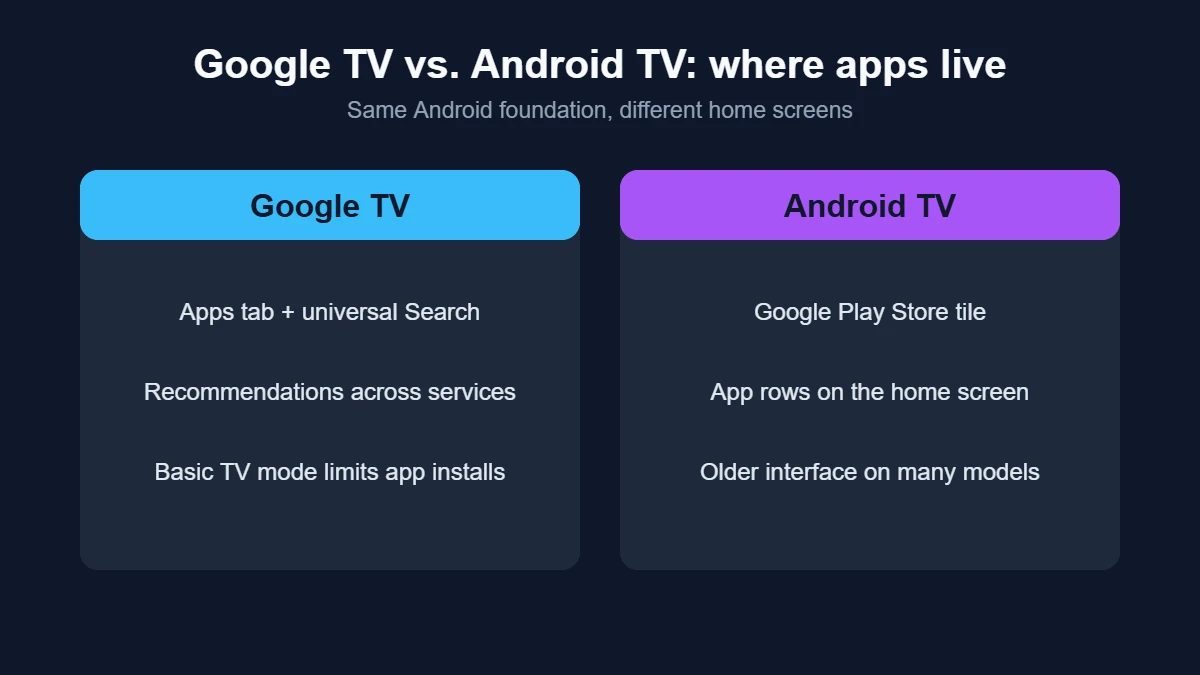
Before you install apps on Google TV, it helps to know which interface you actually have. Google TV is an interface built on Android TV technology, but the menus do not always look the same. A television sold as Google TV may place app discovery under an Apps tab or a search interface.
An older Android TV may expose the Google Play Store more directly. That distinction matters when a tutorial says to select a menu that you cannot see. Before changing anything, open Settings and note the television brand, model, operating system version, and whether the home screen says Google TV or Android TV.
If you are helping a family member remotely, ask for a photo of the home screen rather than assuming their menus match yours. This small step prevents most wrong-turn instructions. The aim of this guide is to install legitimate apps through supported methods, not to bypass a device’s security controls or acquire access to material without permission. App availability also varies by country, model, and account.
Check whether the app is supported
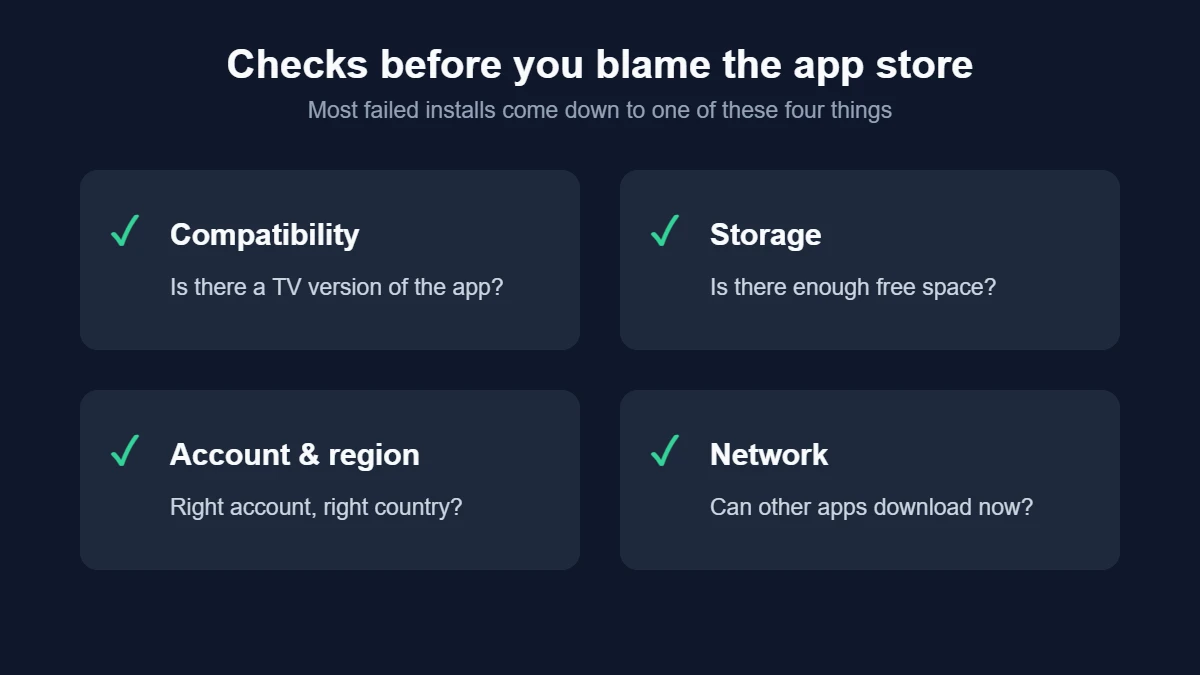
Not every app you use on your phone is available when you install apps on Google TV, so confirm support first. Search for the exact app name using the television’s own app discovery screen. A mobile phone result is not evidence that the same app will run on your television.
Television apps need remote-friendly navigation, compatible video decoding, and support for the installed operating system. Sony’s support documentation explains that the store shows applications compatible with the television, and that not every Android mobile app is suitable for TV. If an app does not appear, check the publisher’s official website for supported platforms and regions.
Compare the developer name carefully: similarly named applications can belong to unrelated publishers. Avoid following social media instructions that tell you to download an unfamiliar installation package merely because a legitimate app is missing. A missing listing may be a compatibility or regional restriction rather than a technical fault. Record the app’s official name and publisher before moving to the next step.
Install apps on Google TV from the Apps tab
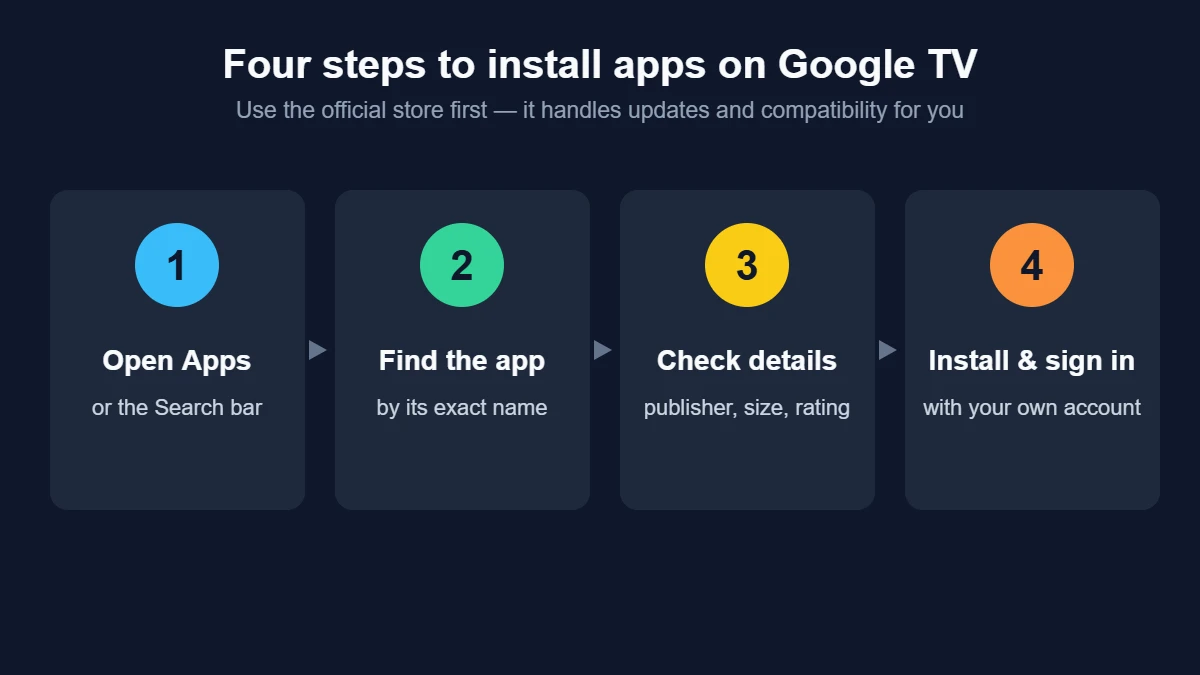
The most direct way to install apps on Google TV is through the Apps tab on the home screen. On many Google TV home screens, move to Apps and browse the categories or search for the title you want. Open the listing and read its description, developer, permissions, and any subscription conditions.
Select Install only when the publisher and app match your intention. Wait for the process to finish, then use Open or return to the home screen to find the installed app. Depending on the model, the app may appear under Your apps, a recent-apps row, or a full applications screen.
The precise labels can differ after software updates. If the television asks you to sign in, use your own Google account and complete the prompt on the television or its documented companion flow. Do not give account passwords to a streaming seller or a third-party installer.
If the download stops, check free storage and network status before trying again. Repeatedly selecting Install will not solve a storage shortage.
Google documents the same flow in its official Install apps on Google TV help article, which also explains how to reorder and remove apps.
Use Search to install apps on Google TV
Some interfaces emphasize a universal search box rather than a visible store icon. Press Home, select Search, and type the app’s official name using the on-screen keyboard. A voice-search button can be faster, but spelling out the name may be more reliable when several products sound alike.
Search results may include movies, shows, recommendations, and apps together, so choose the application result rather than a video title. Review the developer before installing. Sony documents both keyboard and voice-search methods for supported Google TV models.
If the result offers only information about the app but no Install action, check whether it is already installed or unavailable on that model. Avoid changing the television’s region simply to force a listing to appear; regional restrictions can reflect licensing, billing, and technical support limitations. Keep a short note of the exact message shown if you need assistance.
Understand Basic TV mode
If you cannot install apps on Google TV at all, check whether the set is in Basic TV mode. A Google TV can sometimes be configured in Basic TV mode, which emphasizes television inputs and preinstalled applications instead of the full connected experience. If you are using that mode, a missing app-installation menu may be expected behavior.
Sony notes that switching from Basic TV to the full Google TV setup requires signing in to a Google account. Before doing so, decide whether you actually want the additional connected features. A shared household television might deliberately use a simplified setup for privacy or ease of use.
Changing modes is not a trivial troubleshooting step when someone else manages the device. Ask the owner first, and read the setup screens so you understand what account information will be connected. If you prefer not to sign in, consider using the apps already provided or an independently managed external streaming device rather than treating Basic TV as a defect.
Check storage before troubleshooting downloads
Storage is one of the most common reasons people cannot install apps on Google TV after the first few months of use. Televisions typically have less free app storage than phones or computers. Even when an app is small, its updates, cache, and downloaded resources may need additional space.
Open Settings and look for Storage or Apps to review capacity. Remove an unused application only if you know it is safe to remove and have permission from the person who uses it. Clearing a cache can sometimes help a misbehaving app, but clearing app data may sign you out or erase local preferences.
Do not use Clear data as a first response without understanding the consequences. If the system reports insufficient storage, restarting alone will not create a meaningful amount of free space. Make one change, try the installation again, and note the outcome.
This controlled approach is more effective than changing several unrelated settings and losing track of what actually solved the problem.
Separate network problems from app problems
A slow or unstable connection can make it look as if you cannot install apps on Google TV when the store itself is working fine. If the app listing opens but the download stalls, first check whether other online services work on the television. A phone speed test in another room does not necessarily reflect the TV’s connection.
Look in the television’s Network settings for its connected Wi-Fi name and signal status. Restarting the TV and router can resolve temporary connectivity problems, but avoid resetting network settings unless simpler checks fail. If your router broadcasts multiple bands, compare their performance where the television sits; a distant 5 GHz connection may be less reliable than a stronger 2.4 GHz connection.
Where supported, Ethernet is a useful diagnostic because it removes Wi-Fi interference from the equation. Do not confuse successful installation with successful playback: an app can download over a weak connection and then struggle with video. Troubleshoot those two stages separately.
Update the TV carefully
An operating-system update can resolve app compatibility and security issues, but the process should be deliberate. Open the television’s official Settings menu and look for System or About, then Software update. Follow the manufacturer’s on-screen instructions and keep the television powered throughout the process.
Do not download unofficial firmware files from search results or forums. If the television is managed by a hotel, business, or another family member, confirm that you are allowed to update it. After the update, return to the app store and search again.
Sometimes a publisher ends support for older models even when the television itself is fully updated. That is a support-policy decision, not proof that your device is broken. Check the app publisher’s minimum requirements before spending time on repeated resets.
A software update should be a reasonable diagnostic step, not a promise that every app will become available.
Recognize account and regional restrictions
If an app is missing, also confirm you are signed in with the account you expect. Region settings also decide which titles appear when you install apps on Google TV. A store can show different applications depending on the country associated with the account, the device’s certification, and local distribution agreements. A paid app may also require an eligible payment method or an existing subscription.
Read the listing and the publisher’s terms before purchasing. If an app is available on your phone but absent on the TV, do not assume that transferring the phone’s installation file is a supported workaround. Mobile apps can fail to display correctly with a remote, request unsupported permissions, or lack the appropriate playback components.
The safest approach is to confirm TV compatibility with the developer. When traveling, remember that access to particular content may vary even if the app itself is installed. Installing software is not the same as obtaining a license to watch everything it displays. Choose lawful services and content you are entitled to access.
Organize installed apps for easier navigation
Once an app is installed, make it easy to find rather than relying on search every time. On supported Google TV interfaces, navigate to the apps row and look for a Move or Reorder action when highlighting an application. Some televisions use a long press on the select button to open this menu.
The available controls vary by manufacturer, so use the on-screen labels. Put frequently used services near the beginning of the row and leave rarely used tools farther back. This is especially helpful for older relatives and shared living-room devices.
Consider whether children should have separate profiles or access restrictions where the platform supports them. An organized home screen can make a television feel faster even though it does not change the hardware. If a menu changes after an update, look for the equivalent action rather than assuming the application disappeared.
Protect your accounts and subscriptions
Use unique passwords for streaming services and enable additional account protection where offered. If the TV is shared, think carefully before saving payment details or signing into a personal account. Official app stores reduce some installation risks, but they do not eliminate phishing or misleading subscription offers.
Check the publisher, pricing terms, cancellation process, and support website before subscribing. Do not send screenshots containing activation codes, account identifiers, or payment information to strangers. If a support agent asks for remote-control access or an account password, verify the request independently through the company’s official help channel.
For subscription-based services, keep the receipt and renewal terms in a safe place. If you later sell or give away the television, sign out and use the manufacturer’s documented reset procedure after backing up anything important. Device setup is also an account-security task.
What to do when an app opens but does not play video
Installation and playback are separate systems. If an app opens but a video does not start, check whether the problem affects one title or every title. Confirm that your subscription or account has access to the selected content.
Try a different lawful video in the same application and then compare with another legitimate streaming app. If all services struggle, investigate the TV’s network and system resources. If only one app fails, review its updates, account status, and publisher support notes.
Video errors may involve digital rights management, codecs, regional licensing, or service outages; reinstalling the app cannot fix every cause. Record the error message and time before contacting support. Avoid third-party patches promising to remove restrictions.
A useful support request explains the model, app version, network type, exact symptom, and what you have already tested.
When an external streaming device makes sense
If a television’s operating system no longer supports the apps you need, an external streaming device can be a practical alternative to replacing the entire screen. Compare supported applications, remote accessibility, update policy, audio formats, network options, and total cost before buying. An HDMI streaming device does not automatically improve a poor internet connection or unlock region-restricted content.
It simply runs its own operating system and applications. Make sure your television has a suitable HDMI input and that the device has the power supply recommended by its manufacturer. If you are using an older display, verify resolution and HDR compatibility instead of assuming every feature will work.
A device with a familiar interface may also be easier for the household to maintain. Treat the purchase as a compatibility decision, not a shortcut around app-store or licensing rules.
Build a repeatable installation checklist
Use the same short routine each time you install apps on Google TV. For each application, use the same short process: identify the exact publisher; verify that a television version exists; search through the built-in store; read the listing; install; launch; sign in securely; and test with content you are authorized to view. If something fails, write down the step rather than repeating the entire process.
This makes it easier to distinguish an app-store problem from an account or network issue. Keep your TV’s model number and software version somewhere accessible for future support conversations. Review installed apps occasionally, especially on a family television with multiple users, and remove only those you no longer need.
Check that automatic updates are enabled if that suits your household’s preferences. Good maintenance is usually a series of small, predictable habits, not a dramatic reset every time the interface behaves unexpectedly.
Use trustworthy sources for help
Many online guides on how to install apps on Google TV are written for older menus, so check the date before you follow one. When instructions disagree, prefer the device maker’s support documentation and the app publisher’s official help center. A video tutorial may describe an older interface or a different region, and a blog can unintentionally mix Android phone instructions with television instructions. Sony’s Google TV installation guide is a useful example because it explains the differences between app search and the Apps tab.
Manufacturer support pages can also tell you whether a model supports the application at all. Avoid instructions that require disabling security controls or downloading unknown packages just to install a conventional streaming app. If you need customer support, include the exact steps already attempted and the error text, but redact personal information.
A good diagnosis narrows down the cause. It should not require you to disclose a password, change your account region without reason, or buy another subscription before anyone checks compatibility.
Frequently asked questions
Can I install every Android phone app on Google TV?
No. Television compatibility differs from phone compatibility. The TV app store generally shows applications supported on that device, and a phone-only app may not work with a remote or TV playback environment.
Why is the Google Play Store missing from my home screen?
Some Google TV interfaces integrate app discovery into the Apps tab or Search. Basic TV mode can also limit installation. Check the device maker’s documentation for your model.
Do I need a Google account to install apps?
Many Google TV setups require a signed-in Google account to install additional applications. The requirements depend on the model and whether the television is configured in Basic TV mode.
Will reinstalling an app fix buffering?
Not necessarily. Buffering can result from a weak connection, network congestion, the app, or the streaming service. Test the connection and another legitimate app before reinstalling.
Is sideloading a missing app a good idea?
It can introduce security and compatibility risks and is not necessary for most conventional TV applications. Prefer the official store and the developer’s supported installation methods.
What if the TV is too old for an app?
Check the publisher’s minimum requirements and the manufacturer’s update support. A compatible external streaming device may be more practical than replacing the television.
Further reading and sources
For official, model-specific steps, use Google’s Google TV help center and your manufacturer’s support site, such as Sony’s guide to installing apps on Google TV and Android TV. Manufacturer pages are the best place to confirm whether your exact model still receives app and system updates.
Related Articles
November 20, 2026
IPTV in Kosovo, Serbia and North Macedonia: Language and Device Compatibility Guide
November 20, 2026
IPTV in the Balkans: A Regional Viewing Guide for Families and Diaspora
November 20, 2026
IPTV in Albania: Devices, Albanian Language and Setup Guide
November 20, 2026