
🔥 FLEXIBLE & SECURE PAYMENTS — USDT • USDC • BTC • ETH • SOL • TRON (TRC20) • BINANCE PAY • KAST & MORE
Streaming App Keeps Crashing on Your TV? 8 Fixes in the Right Order
Streaming app keeps crashing on your smart TV? Fix it in 8 safe steps: restart, update, free storage, clear cache, reinstall, and when to reset.
 plustv
•
8 min read
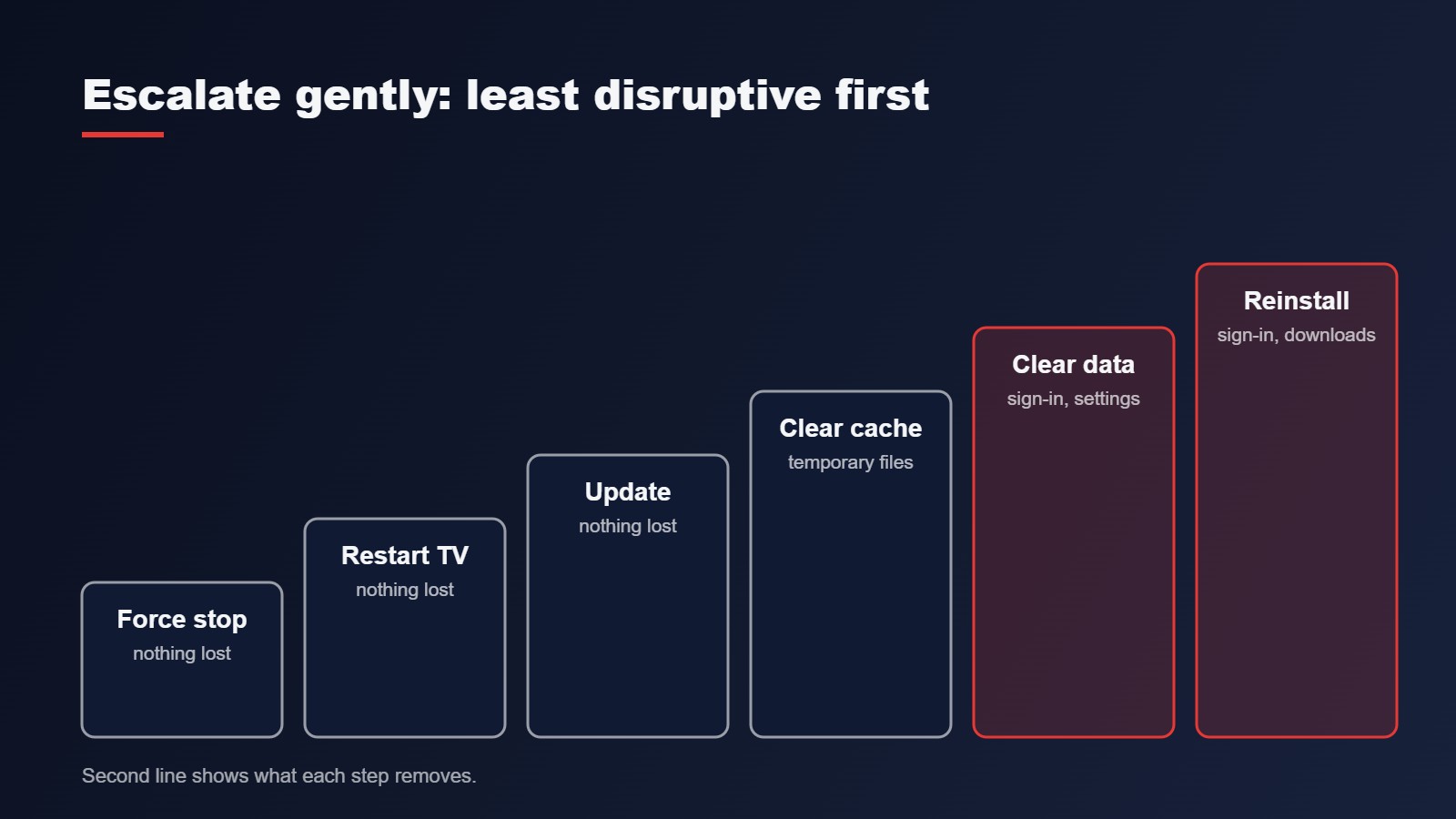
When a streaming app keeps crashing on your smart TV, the fix is usually quick, but only if you change things in the right order. Most crashes come from a stuck app process, an outdated app or TV system, corrupted temporary files, or low storage. Working from the least disruptive step to the most disruptive one fixes the problem without losing your sign-ins along the way.
This guide works for Google TV, Android TV, Samsung, LG, Roku and Fire TV devices. Menu names differ between brands, so the paths below are examples taken from each maker’s support pages.
Table of Contents
First, make sure it is a crash, not buffering
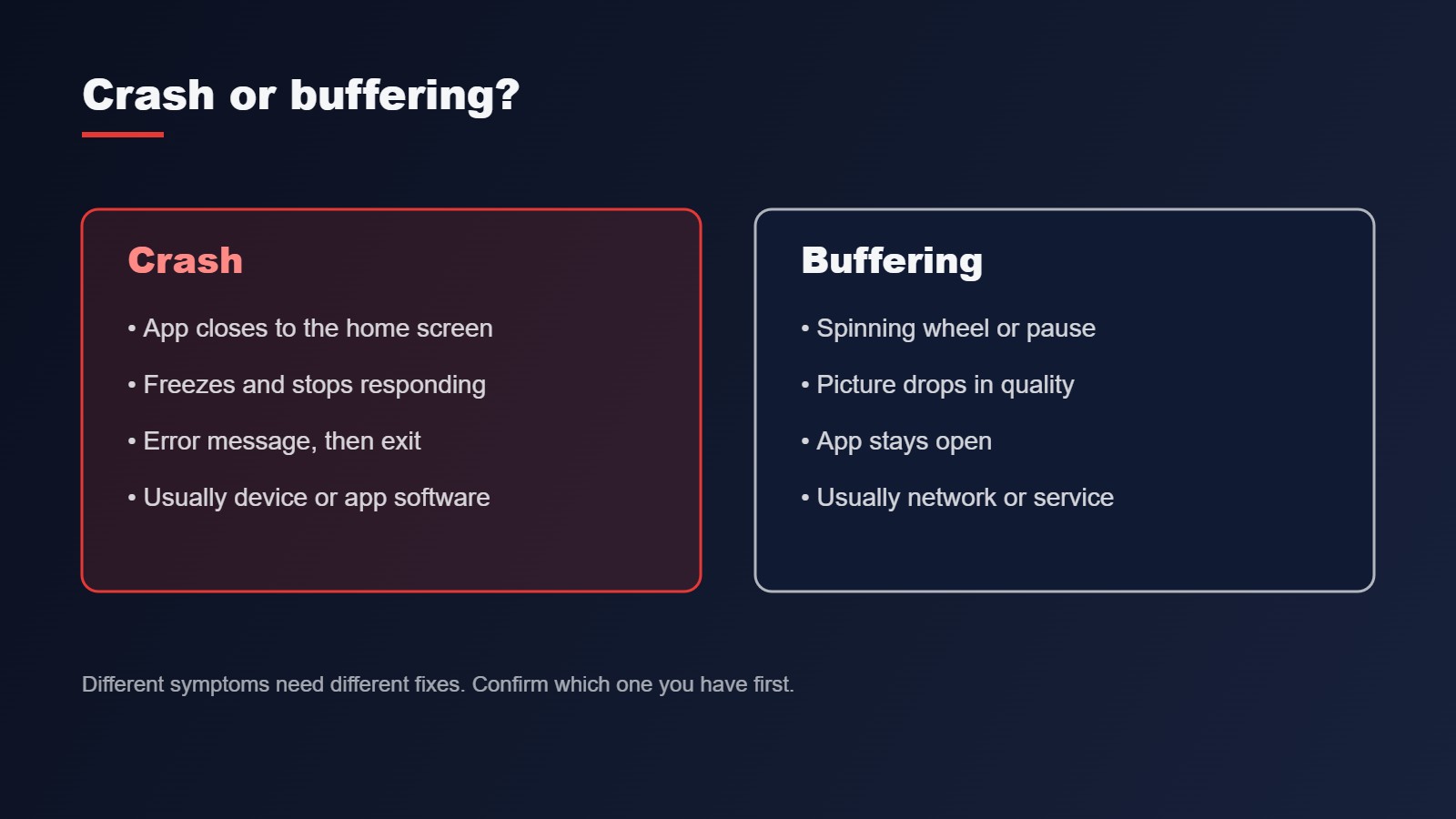
A crash and buffering look similar at first but have different causes. A crash means the app closes, freezes so the remote stops working, or shows an error and drops you back to the home screen. Buffering means the app stays open but pauses with a loading wheel or drops picture quality, which points to the network or the service.
If your problem is really buffering, our guide to fixing streaming buffering is the better place to start. For crashes, carry on below.
Why a streaming app keeps crashing
| Pattern | Likely cause | Best first step |
|---|---|---|
| Crashes on launch | Corrupted cache or outdated app | Update, then clear cache |
| Crashes after a TV update | App not yet compatible | Check for an app update |
| Crashes after a few minutes | Low memory or storage, overheating | Restart TV, free storage |
| Only one title crashes | Problem with that stream | Try another title, report it |
| Several apps crash | TV software or storage | Update TV software, restart |
One more quick test helps: open the same service on a phone, tablet or laptop. If the streaming app keeps crashing there too, the problem is probably on the service side or tied to your account, and the provider’s status page or support team is the next stop. If it works everywhere except the TV, the fix is on the smart TV, and the steps below apply.
Step 1: Check if it is one app or every app
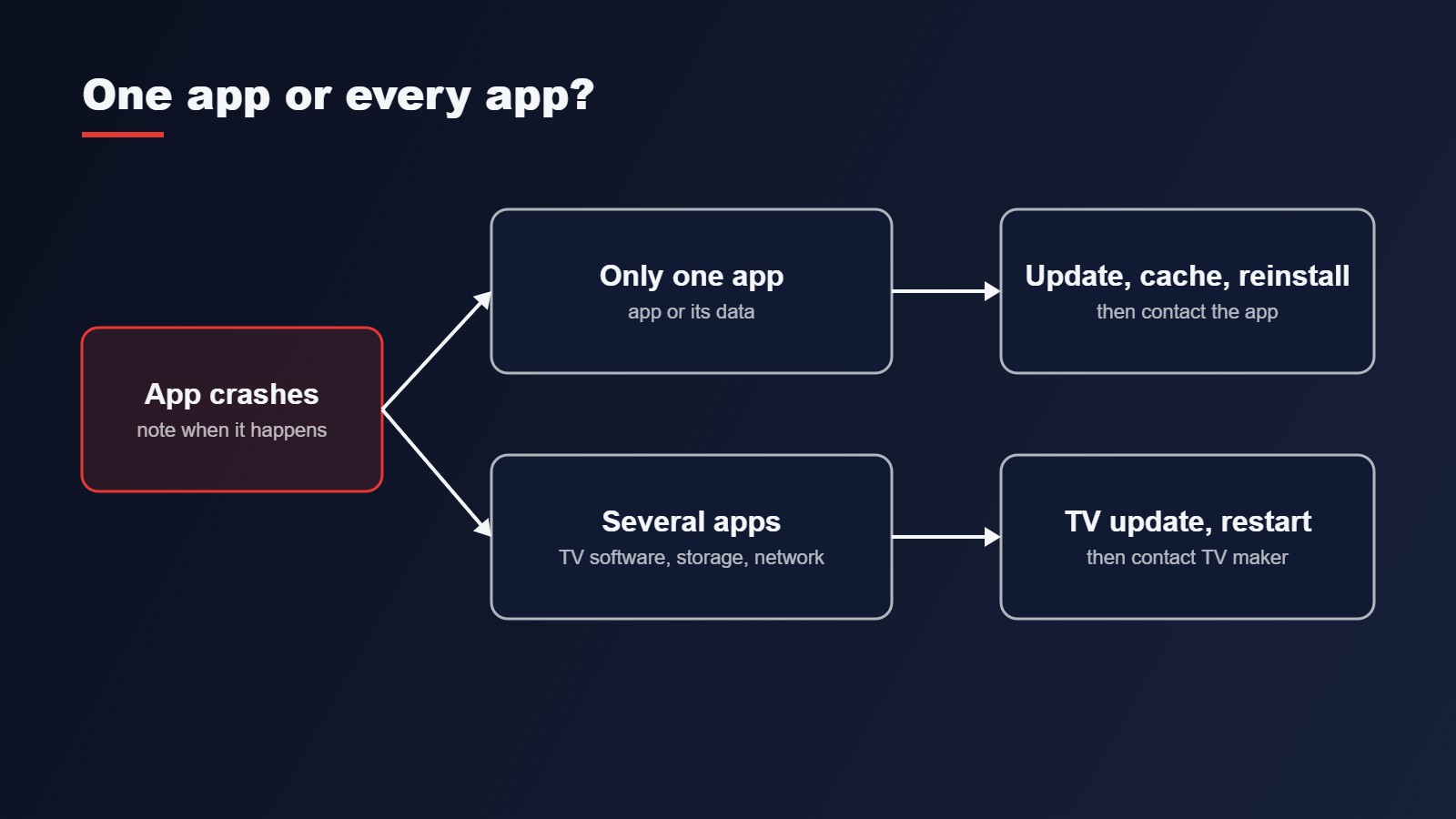
Open a different streaming app and play something. Roku’s playback troubleshooting guide suggests exactly this, along with trying other titles in the same app and checking the service’s website for an outage. If only one app fails, focus on that app. If several apps crash, the TV itself, its storage or its software is the more likely cause.
Step 2: Force stop the app and restart the TV
On Google TV, go to Settings > Apps, choose the app and select Force stop; Google’s help page lists this as an early step, along with closing background apps. Then restart the TV fully rather than pressing standby. On many TVs you can hold the power button on the remote until the logo appears, or unplug the set for about 30 seconds.
A full restart clears memory and stuck processes. Standby often does not, which is why a streaming app keeps crashing even after you “turn it off and on”.
Step 3: Update the app and the TV software
Apps are updated to fix bugs and keep up with changes in the TV’s system, and the reverse is true too. Check for an app update in your TV’s app store, then check the TV’s own software update menu (often under Settings > Support or Settings > System). Turn on automatic updates if your TV offers them.
Samsung’s app troubleshooting guide puts cold booting the TV and updating the software ahead of reinstalling apps or resetting Smart Hub. If a crash started straight after a TV update, an app update usually follows within days.
Step 4: Free up storage space
Smart TVs have little internal storage, and some apps refuse to start or crash when it runs low. Check the storage figure in the TV’s settings, uninstall apps nobody uses, and clear the cache of large apps. Do not delete system apps or anything you do not recognise without checking first.
Step 5: Clear the cache, then the data if needed
Clearing the cache removes temporary files and keeps your sign-in, so it is the safer step. On Google TV and Android TV, go to Settings > Apps, select the app, then Clear cache. If the app still crashes, Clear data resets it completely, signing you out and removing its settings and downloads.
Samsung, LG and Roku TVs do not always offer a separate cache option for each app. On those, restarting the TV clears much of the temporary data, and reinstalling the app is the equivalent of clearing data.
Step 6: Reinstall the app
Write down any settings you care about, such as subtitle language or profile choices, and make sure you know your password. Then uninstall the app, restart the TV, and install it again from the official app store. Avoid installing versions from websites or USB sticks: they may be outdated, modified or unsafe. Our guide to installing apps on Google TV safely explains how to check that an app is genuine.
Step 7: Rule out network, heat and power problems
A weak connection usually causes buffering rather than crashes, but some apps do close when they lose the connection during sign-in or playback start. If crashes happen at the same moment each time, try a wired connection or move the router closer as a test.
Heat and power can also cause problems. Keep the vents behind the TV clear, and give streaming sticks room to breathe rather than wedging them against the wall. Use the power adapter supplied with a streaming stick, because a TV’s USB port may not supply enough power and can cause random freezes.
Step 8: Reset Smart Hub or the TV only as a last resort
Samsung TVs offer a Reset Smart Hub option, and other brands offer a factory reset. Both sign you out of every app, and Samsung notes that a Smart Hub reset can remove apps that were not pre-installed. Gather your passwords first, and only use this when several apps crash after all the steps above.
Prepare a useful support request
If the streaming app keeps crashing after all of this, contact the app’s support team if only that app is affected, or the TV maker if several apps fail. Include:
- Your TV or device model and software version.
- The app name and version number (usually in the app’s settings or the TV’s app list).
- What you were doing when it crashed, and whether it happens every time.
- Any error code or message, with a phone photo if possible.
- The steps you have already tried.
Quick checklist: streaming app keeps crashing
- Confirm it is a crash, not buffering.
- Test another app and another title.
- Force stop the app and fully restart the TV.
- Update the app and the TV software.
- Free up storage and clear the app’s cache.
- Clear data or reinstall from the official store.
- Check ventilation and use the right power adapter.
- Reset Smart Hub or the TV only as a last resort.
Frequently asked questions
Why does my streaming app keep crashing after a TV update?
The app may not yet support the new system software. Check for an app update, restart the TV, and if needed reinstall the app. Developers usually release a fix quickly.
Will clearing the cache delete my account?
No. Clearing the cache removes temporary files only. Clearing data, or reinstalling, signs you out and removes the app’s settings and downloads.
Is a crashing app a sign my TV is failing?
Rarely, if only one app is affected. If many apps crash and the TV is fully updated, low storage or an older model that no longer gets updates is the more likely cause.
Should I factory reset my TV?
Only after every other step, and ideally when the manufacturer’s support suggests it. A reset removes all apps, sign-ins and settings.
Can a streaming stick fix constant crashes on an old smart TV?
Often, yes. If your TV no longer gets software updates, an up-to-date streaming device gives apps a supported platform while the TV simply acts as a display.
Sources
- Google TV Help: Fix app crashes on Google TV
- Samsung Support: An app will not work on my Samsung TV
- Roku Support: Issues playing shows and movies
Menu names change with software updates. Check your TV maker’s current support pages for exact steps.
Related Articles
November 20, 2026
IPTV in Kosovo, Serbia and North Macedonia: Language and Device Compatibility Guide
November 20, 2026
IPTV in the Balkans: A Regional Viewing Guide for Families and Diaspora
November 20, 2026
IPTV in Albania: Devices, Albanian Language and Setup Guide
November 20, 2026