
🔥 FLEXIBLE & SECURE PAYMENTS — USDT • USDC • BTC • ETH • SOL • TRON (TRC20) • BINANCE PAY • KAST & MORE
Smart TV App Privacy Settings: A 9-Step Checklist
Smart TV app privacy settings made simple: turn off ACR, limit ad tracking, review app permissions and secure your accounts with a 9-step checklist.
 plustv
•
8 min read
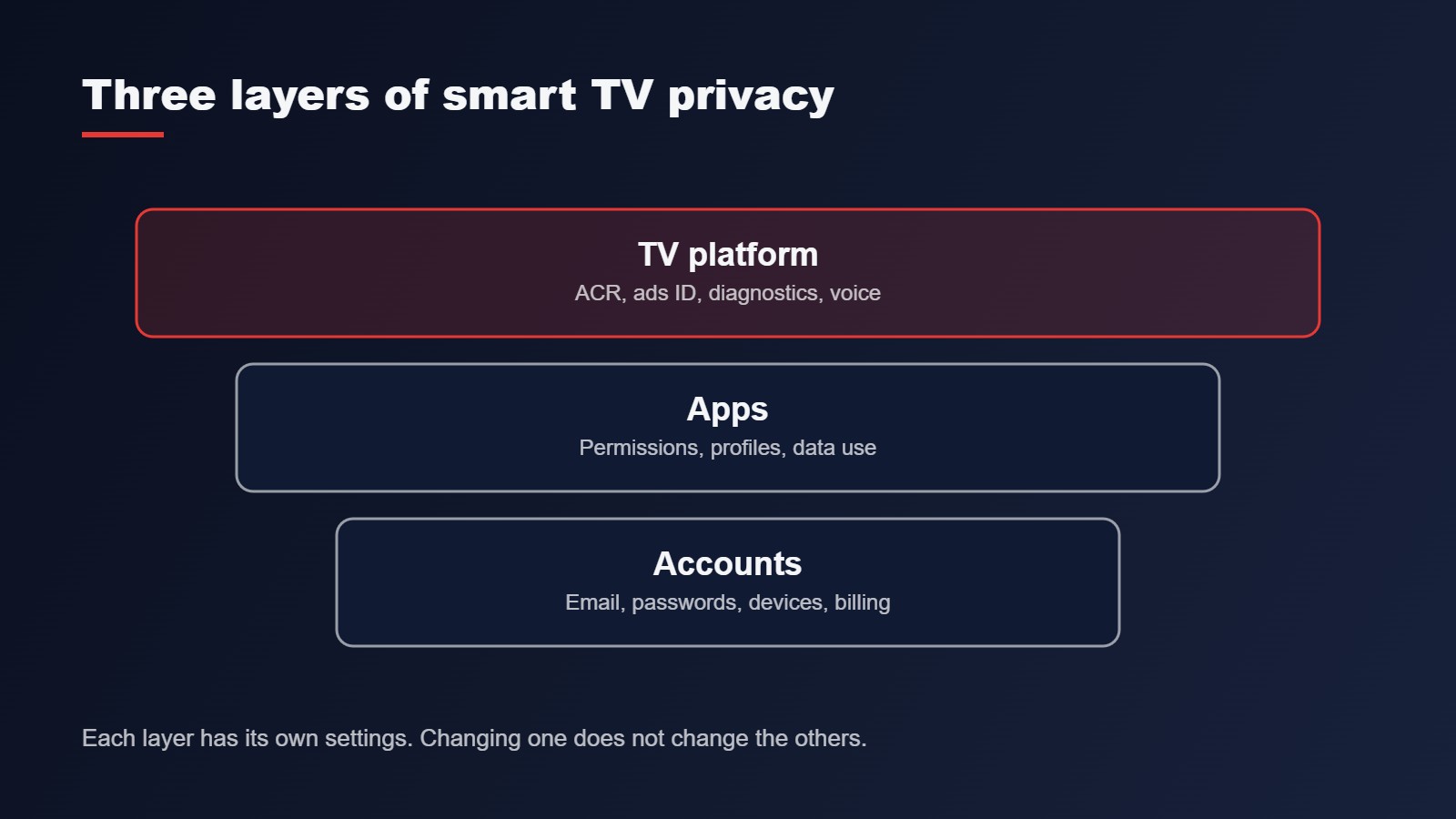
Smart TV app privacy settings are spread across three places: the TV’s own operating system, each streaming app, and the online accounts behind them. Most people review one of these and assume they are done. A short pass through all three, using the checklist below, gives you real control over what your TV shares without breaking the features you actually use.
No setting makes a connected TV completely private. As Consumer Reports puts it, you cannot stop all data collection without taking the set offline, but you can cut it back considerably. Menu names vary by brand and model year, so use the labels here as a guide.
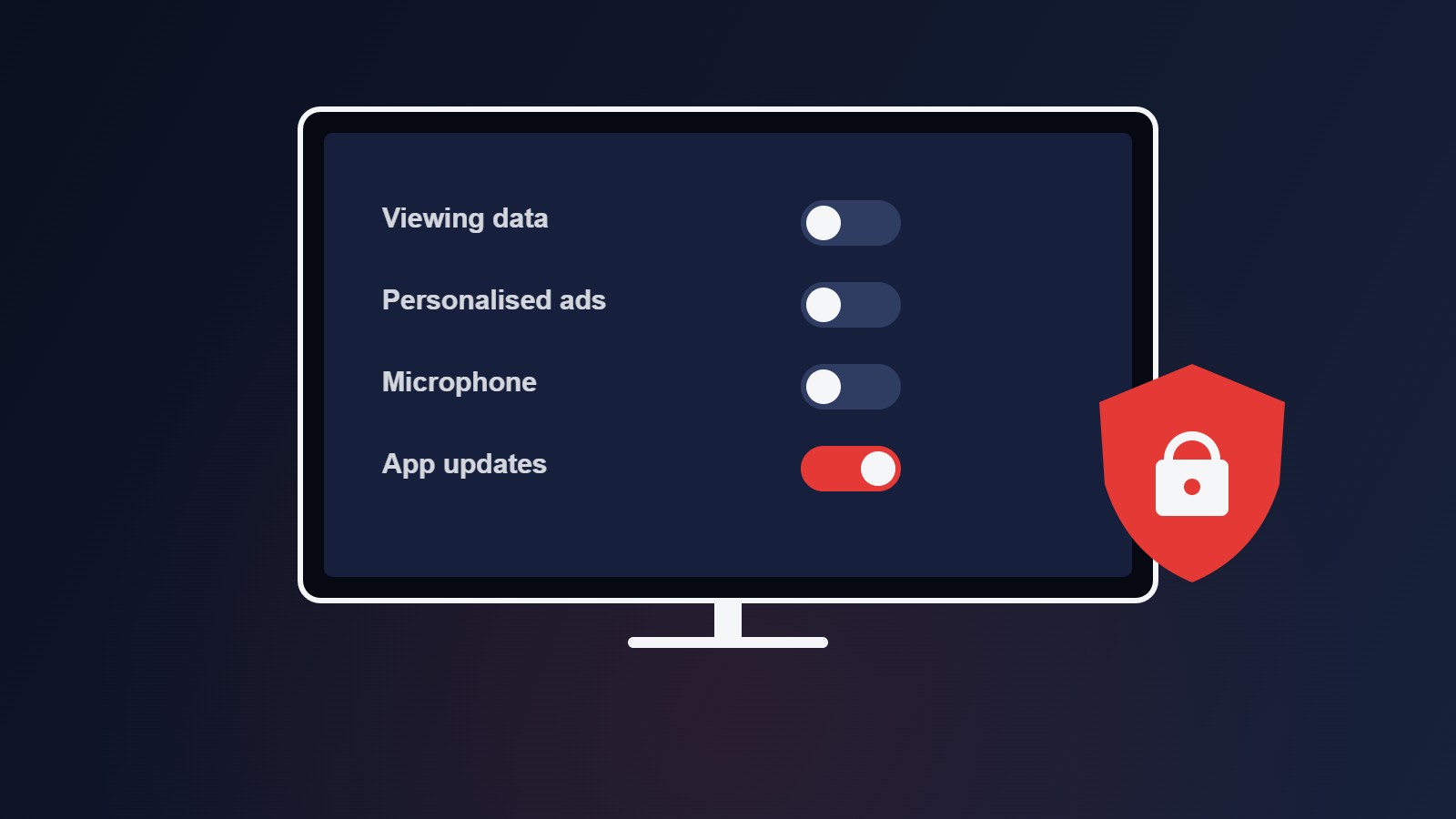
Table of Contents
What your smart TV and its apps can collect
Depending on the brand, region and the choices you made during setup, a smart TV may process device identifiers, diagnostics, app usage, voice commands and information about what appears on screen. Streaming apps collect their own data under their own privacy policies, separately from the TV maker.
The biggest single item is automatic content recognition, or ACR. Consumer Reports explains that ACR tries to identify what you watch, including content from cable boxes, antennas, game consoles and disc players, not just built-in apps. The data is typically used for recommendations and advertising.
Step 1: Turn off ACR in the TV settings
Every major brand uses a different name for ACR, which is why it is easy to miss. Look in the TV’s Privacy, Terms & Privacy, or User Agreements menu for the label that matches your set.
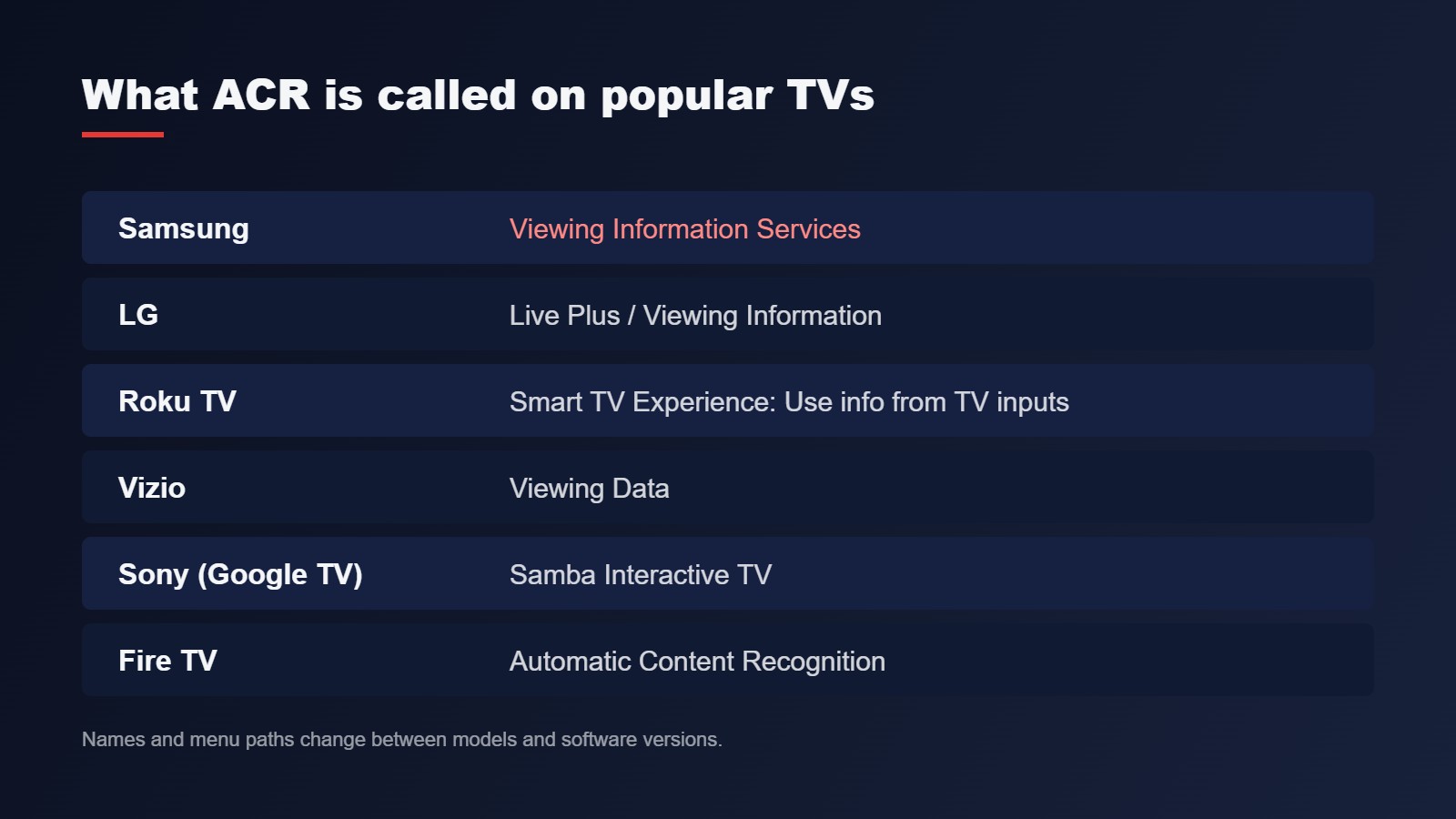
| Brand or platform | ACR setting to look for | Where it usually lives |
|---|---|---|
| Samsung (Tizen) | Viewing Information Services | Settings > Support or General & Privacy > Terms & Privacy |
| LG (webOS) | Live Plus; Viewing Information | Settings > General / Support > Additional Settings and User Agreements |
| Roku TV | Smart TV Experience: Use info from TV inputs | Settings > Privacy > Smart TV Experience |
| Vizio | Viewing Data | Menu > System > Reset & Admin |
| Sony (Google TV) | Samba Interactive TV | Settings > Device Preferences |
| Fire TV Edition | Automatic Content Recognition | Settings > Preferences > Privacy Settings |
The Markup found that on Roku, the ACR switch exists only on Roku TVs, not on Roku streaming sticks, and that turning it off on Samsung and Roku sets can take a surprising number of clicks. Google says its Google TV platform itself does not use ACR, but individual TV brands running Google TV may add their own. Some owners also report that settings switch back on after major software updates, so recheck them occasionally.
Step 2: Limit ad tracking and personalised recommendations
Separate from ACR, most TVs have an advertising ID and an interest-based advertising setting. Turn on “Limit ad tracking” or switch off “Interest-based ads”, and reset the advertising ID if the option exists. Roku and Samsung also let you manage some advertising choices through your online account, so check there as well as on the TV.
Switching these off does not remove ads. It stops them being tailored using what you watch, which is the part most people object to.
Step 3: Review app permissions before and after installing
Only install apps from the official store on your TV or streaming device, and check the publisher name, not just the logo. A video app rarely needs your location or full microphone access to play content. Where your platform shows app permissions, remove any that the app does not need for the features you use.
On Google TV and Android TV, permissions are listed per app in the settings menu. Our guide to installing apps on Google TV safely covers how to spot fake or risky apps before they reach your TV.
Step 4: Check the microphone and voice assistant
Voice remotes and built-in assistants are convenient, but they raise sensible questions about when the microphone is listening and how long recordings are kept. Review the voice settings for wake-word or hands-free listening, use a physical mute switch if your TV or remote has one, and look for an option to view or delete voice history in the assistant’s account.
If someone in the household relies on voice control for accessibility, agree on the change together rather than switching it off for everyone.
Step 5: Use separate profiles in streaming apps
Profiles keep watch history, recommendations and age ratings separate for each person. That improves suggestions and stops one person’s viewing appearing on another’s home screen. Add a profile PIN where the app offers one, especially on profiles with payment access or adult content.
For children, use the kids profile or parental controls inside each app as well as any TV-level restrictions. TV-level PINs usually block launching an app, while in-app controls decide what can be watched once it is open, so the two work best together. Check them again whenever you add a new streaming service.
Step 6: Secure the accounts behind your apps
Your streaming accounts are only as safe as the email address used to recover them. Give that email a unique, strong password and turn on two-step verification. In each streaming service, open the account page now and then and sign out of devices you do not recognise, such as an old TV or a hotel set.
Never type passwords into an unsolicited “support” chat, a link in a text message, or an activation page you did not open yourself from the TV.
Step 7: Keep the TV and apps updated
Updates fix security problems as well as bugs. Turn on automatic updates for the TV software and apps where available, and check the TV’s support menu every few months. Avoid firmware files or apps sent through messages or posted on forums. When a manufacturer stops providing updates for an old model, consider moving streaming to a supported external device.
Step 8: Protect your home Wi-Fi
Use WPA2 or WPA3 security on your router, change the router’s admin password from the default, and keep its firmware current. If your router offers a guest or IoT network, putting TVs and streaming devices on it keeps them apart from laptops and phones. If streaming becomes unreliable afterwards, see our guide to fixing streaming buffering.
Step 9: Delete accounts properly and prepare a TV for sale
Uninstalling an app does not delete your account, subscription or saved data. Use the service’s website to cancel, remove the device and request deletion if you want it.
Before selling or giving away a TV, sign out of every app, unlink it from your accounts, remove any saved payment method, then run the manufacturer’s factory reset. Check afterwards that no profile or Wi-Fi password remains.
A quarterly smart TV app privacy settings routine
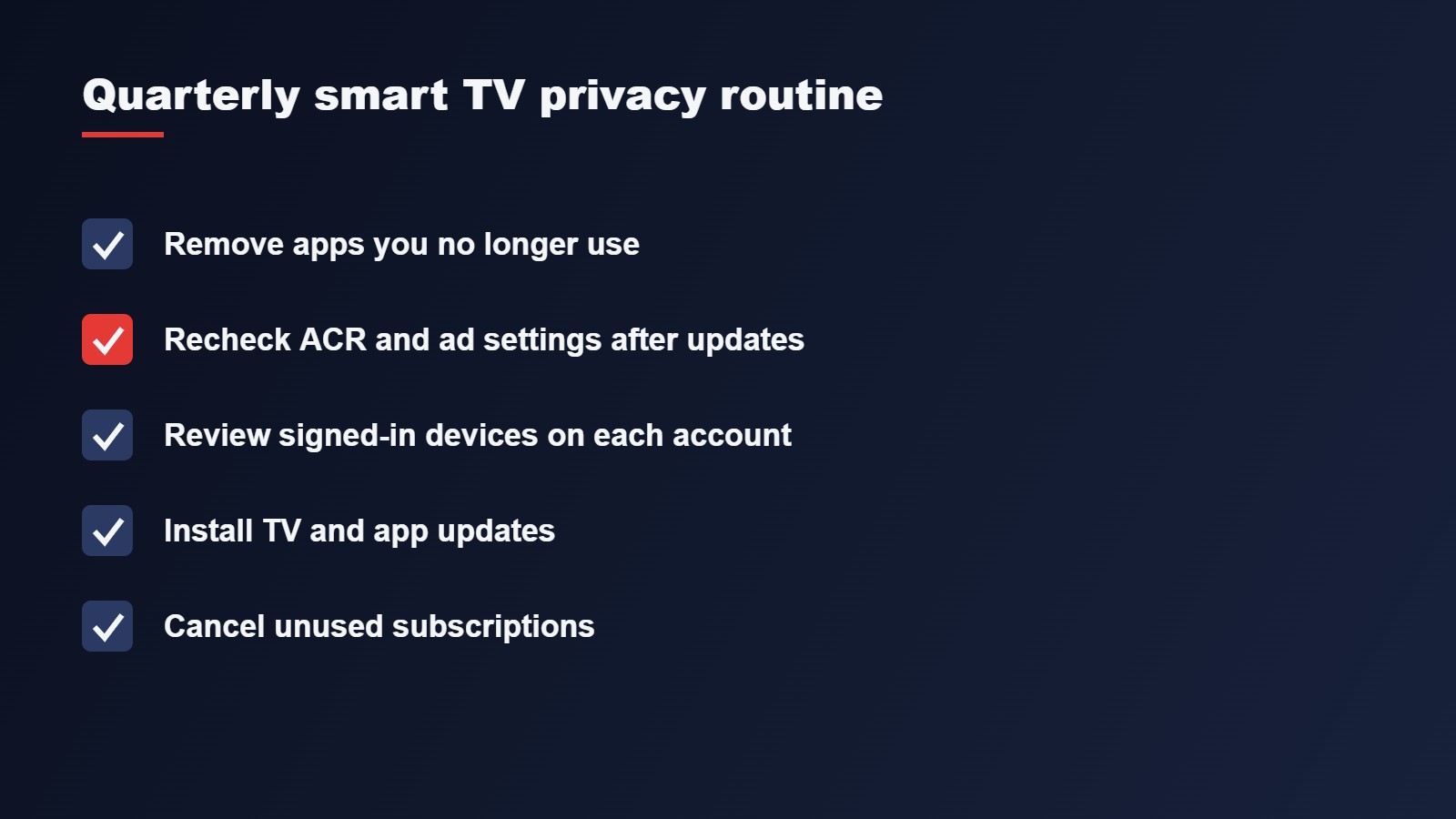
Privacy is easier to maintain with a short, regular check than with a single big clean-up. Every three months, and after any major software update, run through the list below. It takes about ten minutes.
- Remove apps nobody uses, after confirming they are not system components.
- Recheck ACR, advertising and voice settings, because updates can reset them.
- Review signed-in devices on your streaming and email accounts.
- Install pending TV and app updates.
- Cancel subscriptions you no longer need.
Frequently asked questions
Do smart TVs track what I watch?
Many can, through ACR, depending on the brand, region and settings you accepted. Turning off the ACR setting listed above stops the TV identifying content in most cases.
Will turning off ACR break my TV?
No. Core features and streaming apps keep working. You may lose some personalised recommendations or interactive features, such as LG’s Live Plus overlays.
Are smart TV app privacy settings the same as the TV’s settings?
No. Each app has its own privacy policy and options, usually in the app’s settings or on the service’s website. You need to check both.
Does deleting an app cancel my subscription?
Usually not. Cancel through the service’s website or whichever store handles your billing.
Is a streaming stick more private than built-in TV apps?
It depends on the device and its settings. A stick does not use the TV’s ACR on content it plays, but it has its own data and advertising settings to review.
Sources
- Consumer Reports: How to turn off smart TV snooping features
- The Markup: Your smart TV knows what you’re watching
TV makers rename and move privacy settings with software updates. Check your manufacturer’s current privacy page for exact menu paths.
Related Articles

November 20, 2026
IPTV in Kosovo, Serbia and North Macedonia: Language and Device Compatibility Guide

November 20, 2026
IPTV in the Balkans: A Regional Viewing Guide for Families and Diaspora

November 20, 2026
IPTV in Albania: Devices, Albanian Language and Setup Guide

November 20, 2026